Connecting your Vimeo account to Sundra lets you import and export videos and captions directly from your Vimeo library - no downloading and re-uploading required. This guide walks you through every step, from creating a Vimeo Developer app to linking it in Sundra.
Before you begin
You’ll need a Vimeo account (free or paid) and a Sundra account. The whole setup takes about five minutes.
Step 1: Go to the Vimeo Developer Portal
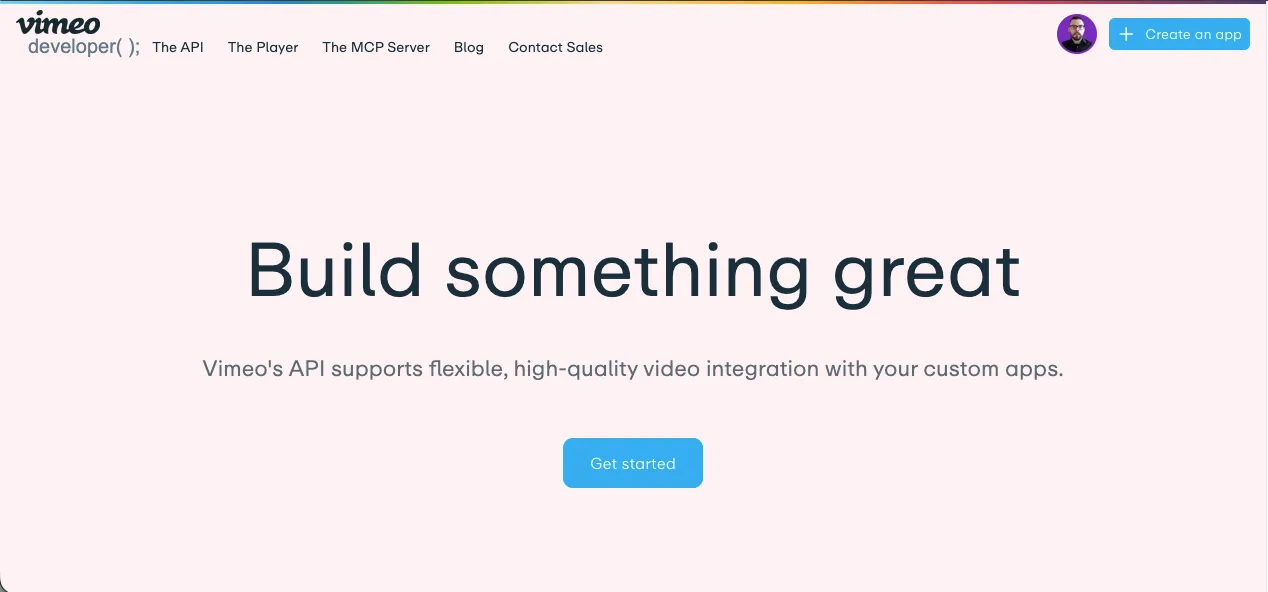
Open your browser and navigate to developer.vimeo.com. Log in with the same Vimeo account that holds the videos you want to caption in Sundra.
Step 2: Create a new app
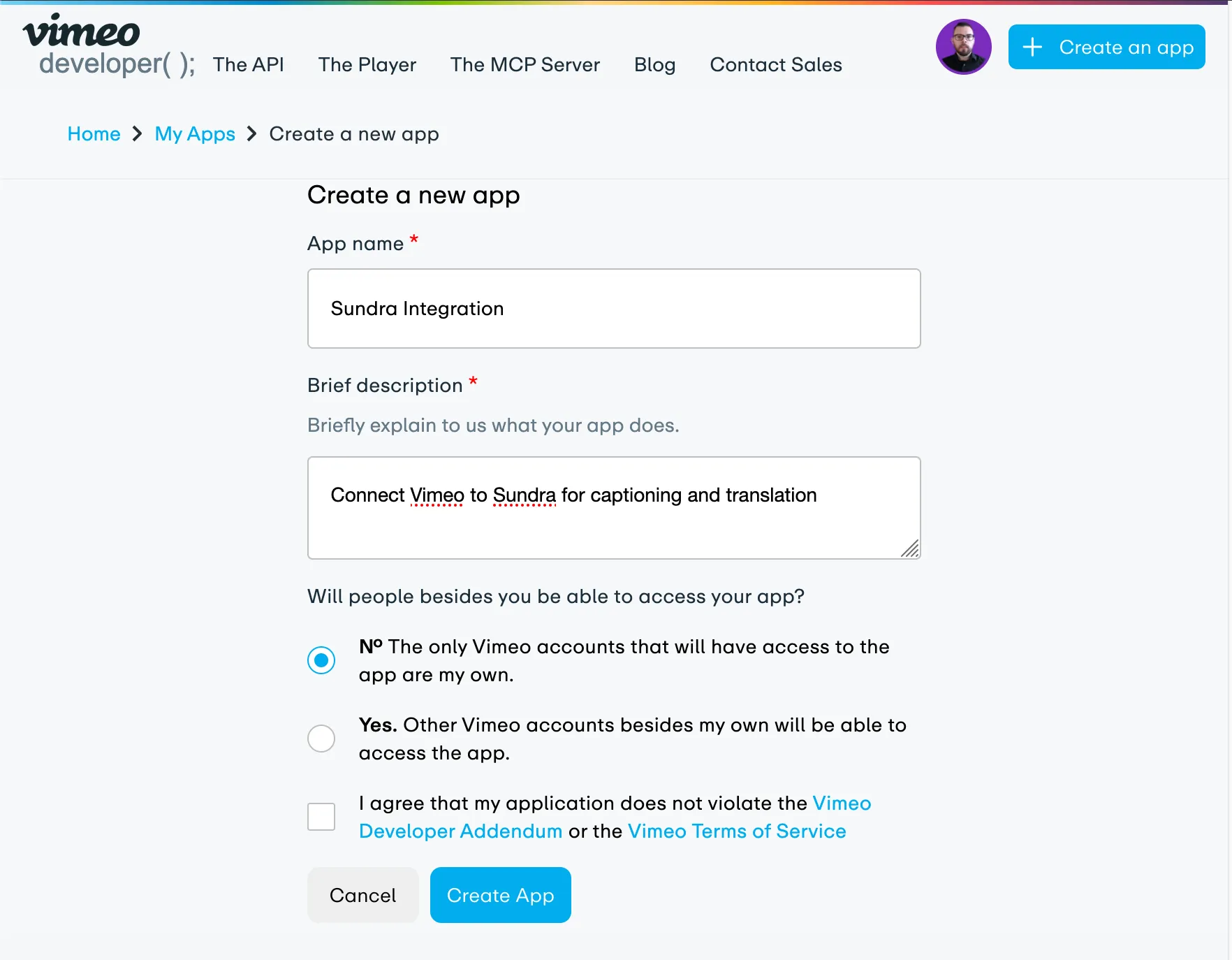
Click “Create app” (or “New App”) in the top-right area of the developer dashboard. Fill in the required fields:
- App Name: something descriptive, e.g. “Sundra Integration”
- App Description: briefly explain the purpose, e.g. “Connect Vimeo to Sundra for captioning and translation”
- Will People besides you be able to access your app?: Select “No”
Accept the terms and conditions and click “Create app” to save. Vimeo will take you to your new app’s settings page.
Step 3: Generate a Personal Access Token (PAT)
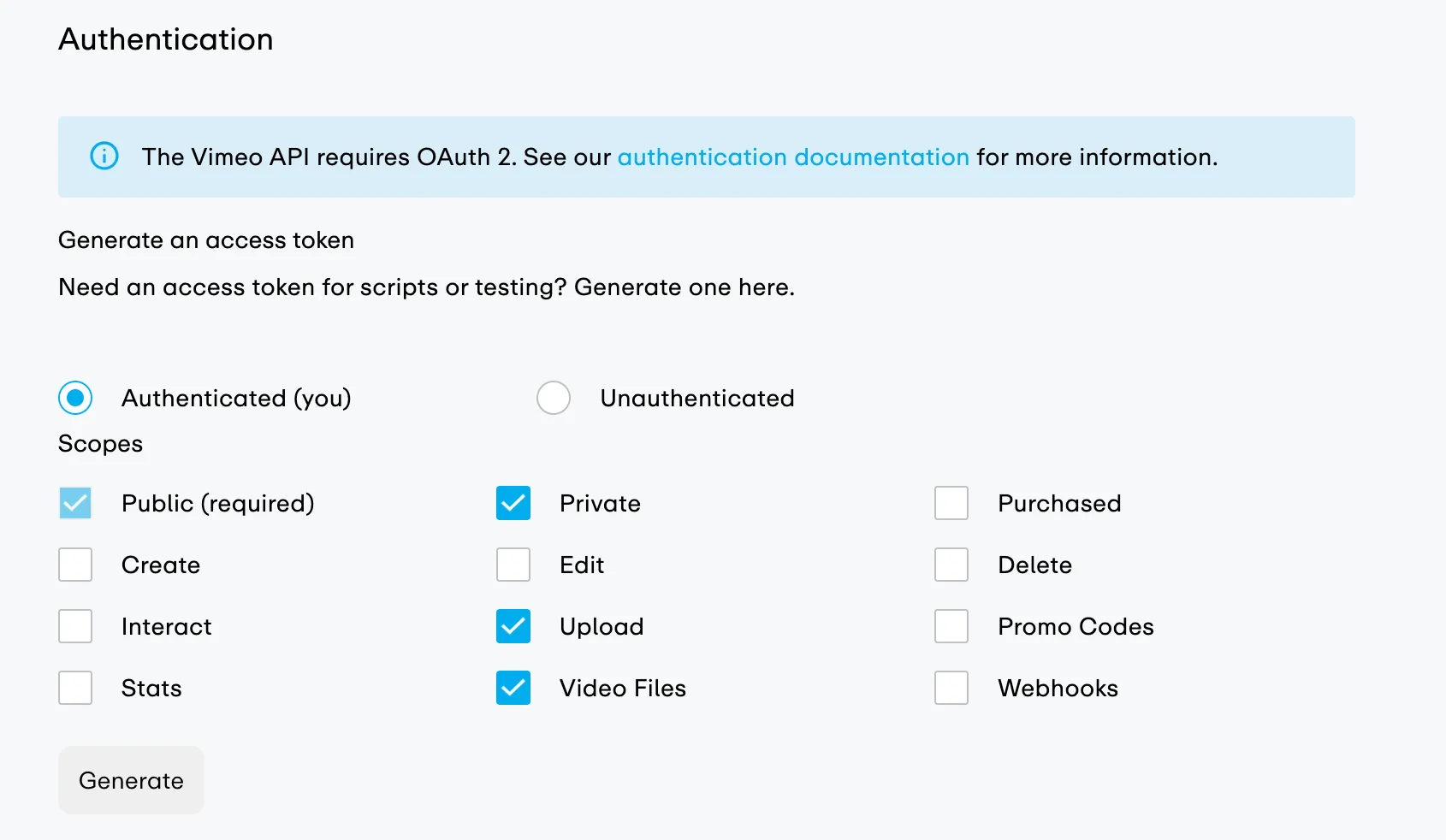
On your app’s settings page, scroll down to the “Authentication” section. This is where you create the token Sundra will use to access your videos.
Before generating the token, you need to select the right scopes (permissions). Make sure the following are checked:
- Private — allows access to your private videos
- Video Files — allows Sundra to download video files for captioning
- Upload — allows Sundra to upload captioned videos back to Vimeo
Click “Generate”. A long token string will appear — copy it immediately. Vimeo only shows the full token once. If you lose it, you’ll need to generate a new one.

Step 4: Connect Vimeo in Sundra
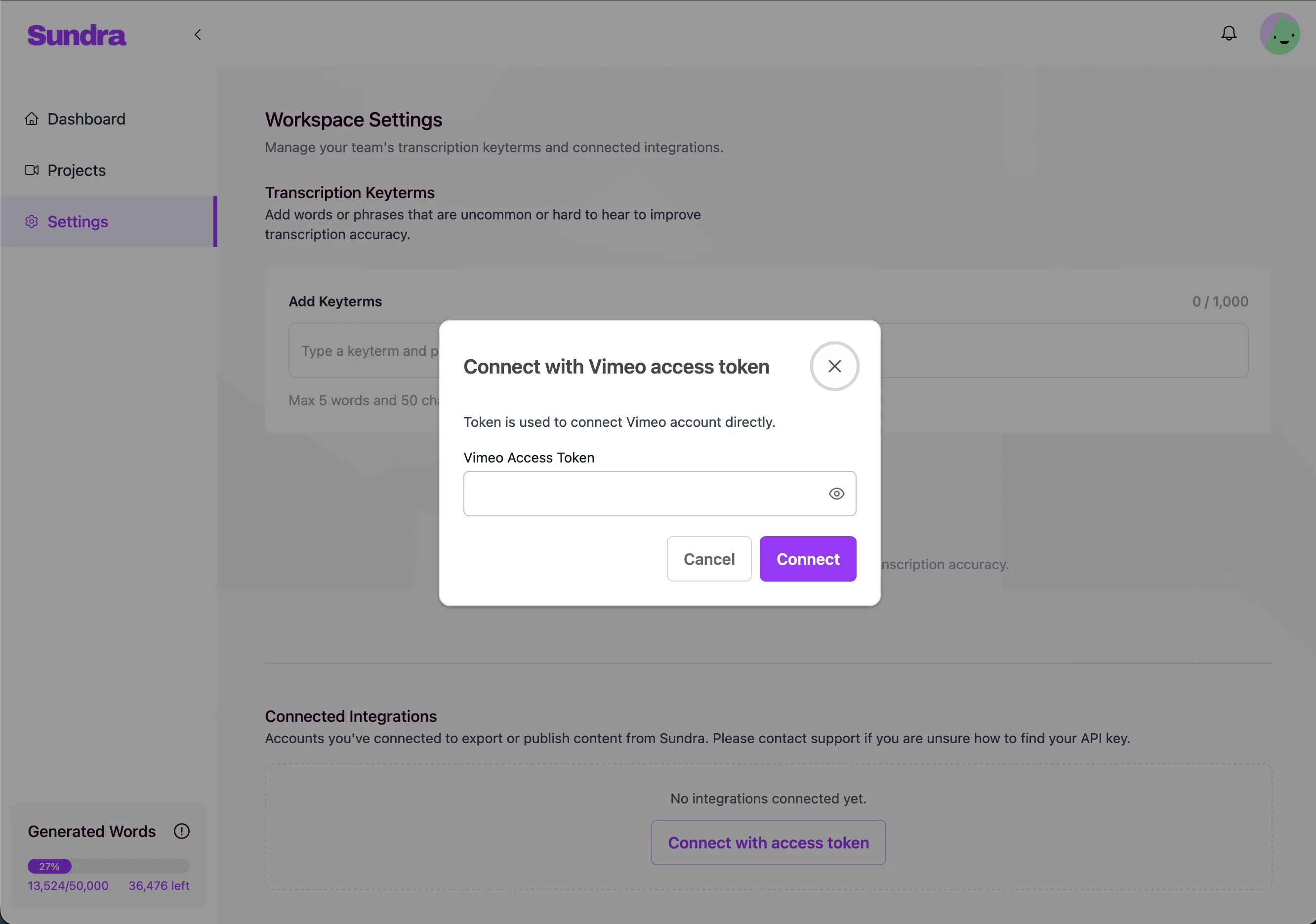
Now head over to app.sundra.io and log in. Navigate to Settings (click the gear icon in the sidebar), then find the “Connected Integrations” section.
Click Connect with Access Token. In the popup, paste your Personal Access Token into the token field and click “Connect”. Sundra will verify the token and confirm the connection. You should see a success message and your Vimeo account name displayed.
Step 5: Import videos from Vimeo
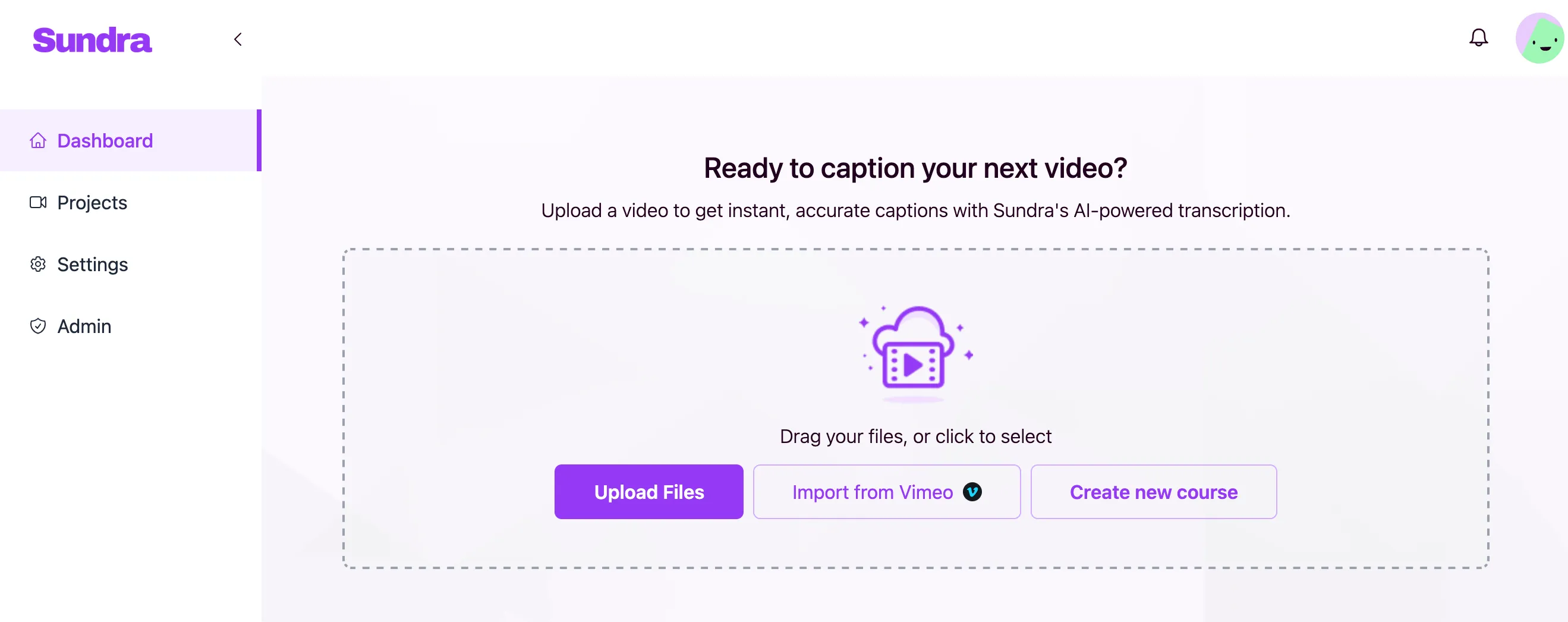
Once connected, go to your Dashboard in Sundra. When uploading a new video, you’ll now see an option to import from Vimeo. Simply paste the link to the video you want to caption, and Sundra will pull it in automatically — no manual download needed.
Troubleshooting
- Token not working? — Double-check that you selected the Private, Video Files, and Upload scopes when generating the token. If in doubt, generate a new one with the correct permissions.
- Can’t see your videos? — Make sure you’re logged into the same Vimeo account that owns the videos. Team members on Vimeo Business or Premium plans may need the account owner to create the app and token.
- Connection lost? — Tokens don’t expire by default, but if you revoke or regenerate the token on Vimeo, you’ll need to update it in Sundra Settings.
That’s it!
Your Vimeo account is now linked to Sundra. You can import videos, caption them, translate into 70+ languages, and export — all without leaving the platform. If you run into any issues, reach out to us at hello@sundra.io.