Sundra’s AI transcription handles everyday speech very well. Where any speech-to-text model struggles is with words it has rarely or never heard: company and product names, people’s names, acronyms, and industry jargon. In an interview or an expert talk, those are often the words that matter most, and a misheard name in the captions is the first thing your audience notices.
Transcription Keyterms fix that. It’s a glossary for your workspace: list the words that are uncommon or hard to hear, and Sundra tells the AI to listen out for them every time it transcribes.
What makes a good keyterm
Add words the AI is unlikely to guess on its own, for example:
- Company, brand and product names: e.g. Össur, Marel, Carbfix
- People’s names, especially interviewees and speakers with uncommon spellings
- Industry terms and acronyms: medical, legal, engineering or internal jargon
- Place names and words borrowed from another language
There’s no need to add everyday words. The AI already knows those, and a short, focused list works best.
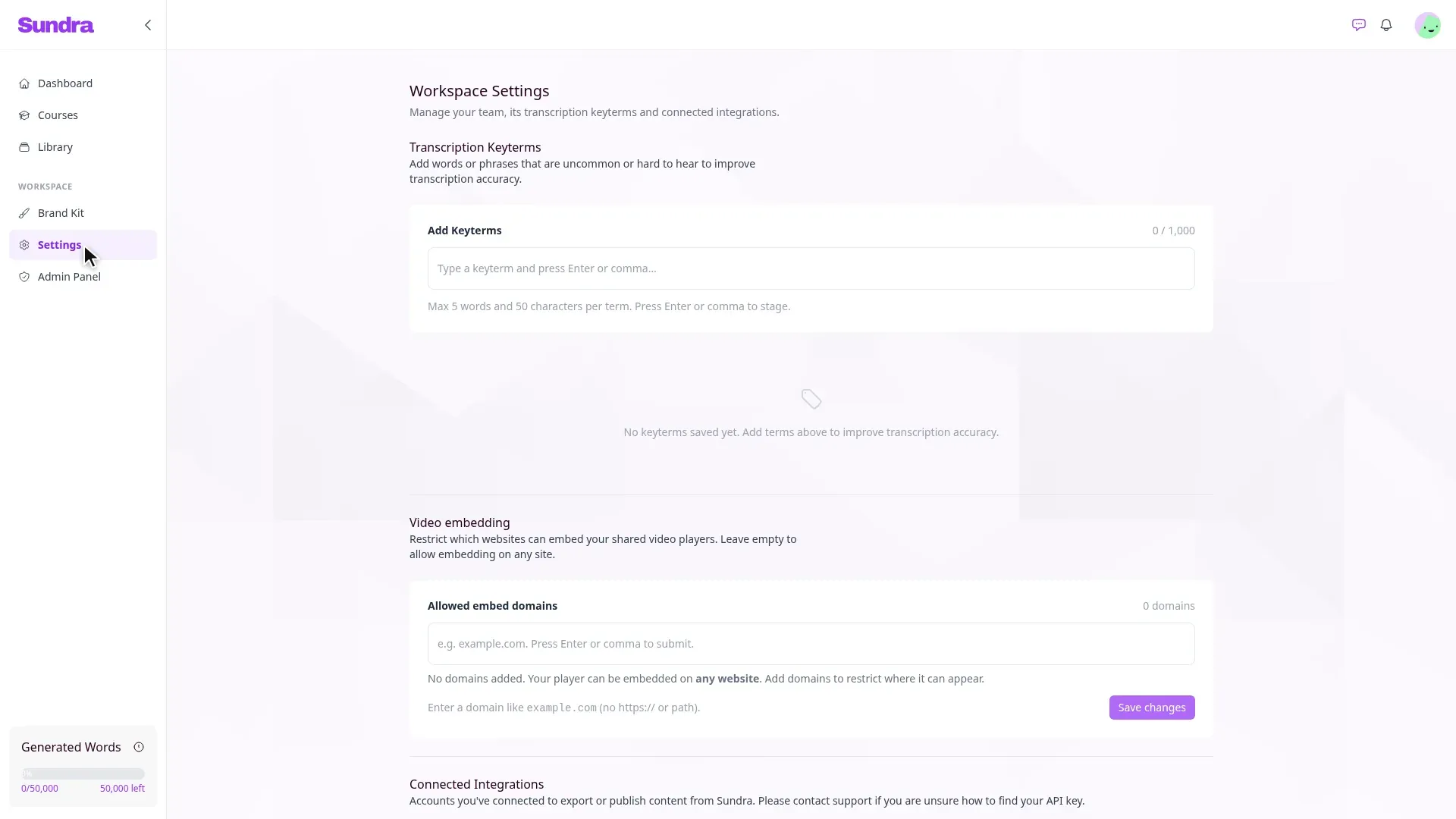
Step 1: Open Workspace Settings
Click Settings under Workspace in the left sidebar.
Step 2: Find the Transcription Keyterms section
The Transcription Keyterms section is at the top of Workspace Settings. Keyterms belong to the workspace, so everyone on your team benefits from the same list.
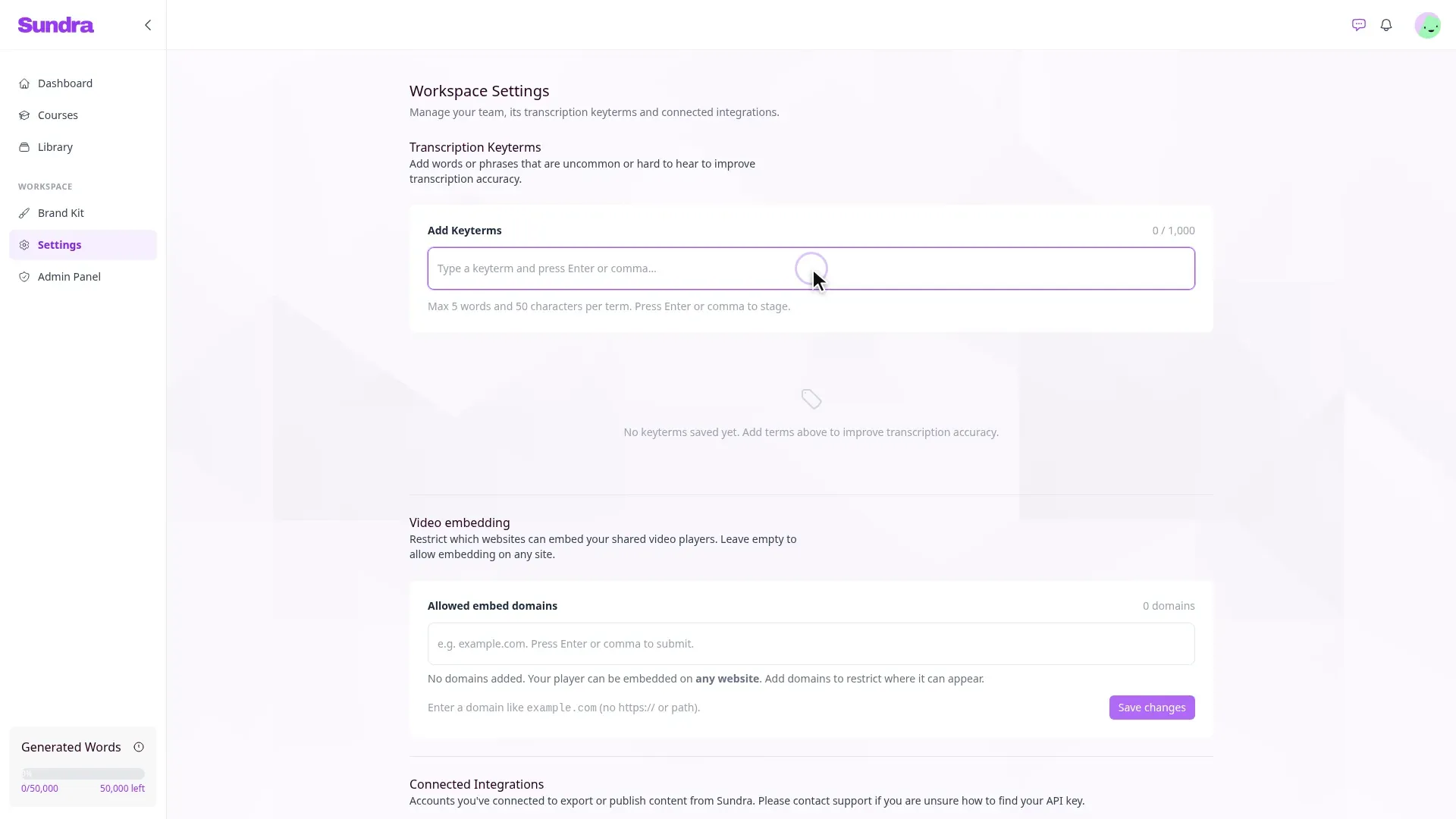
Step 3: Type your terms
Click into the Add Keyterms field and type a term, then press Enter or type a comma to stage it. Staged terms appear as chips, so you can add several in a row and remove any typo with its × before saving.
Each keyterm can be up to 5 words and 50 characters, and a workspace can hold up to 1,000 keyterms. The counter in the corner shows how many you’ve used.
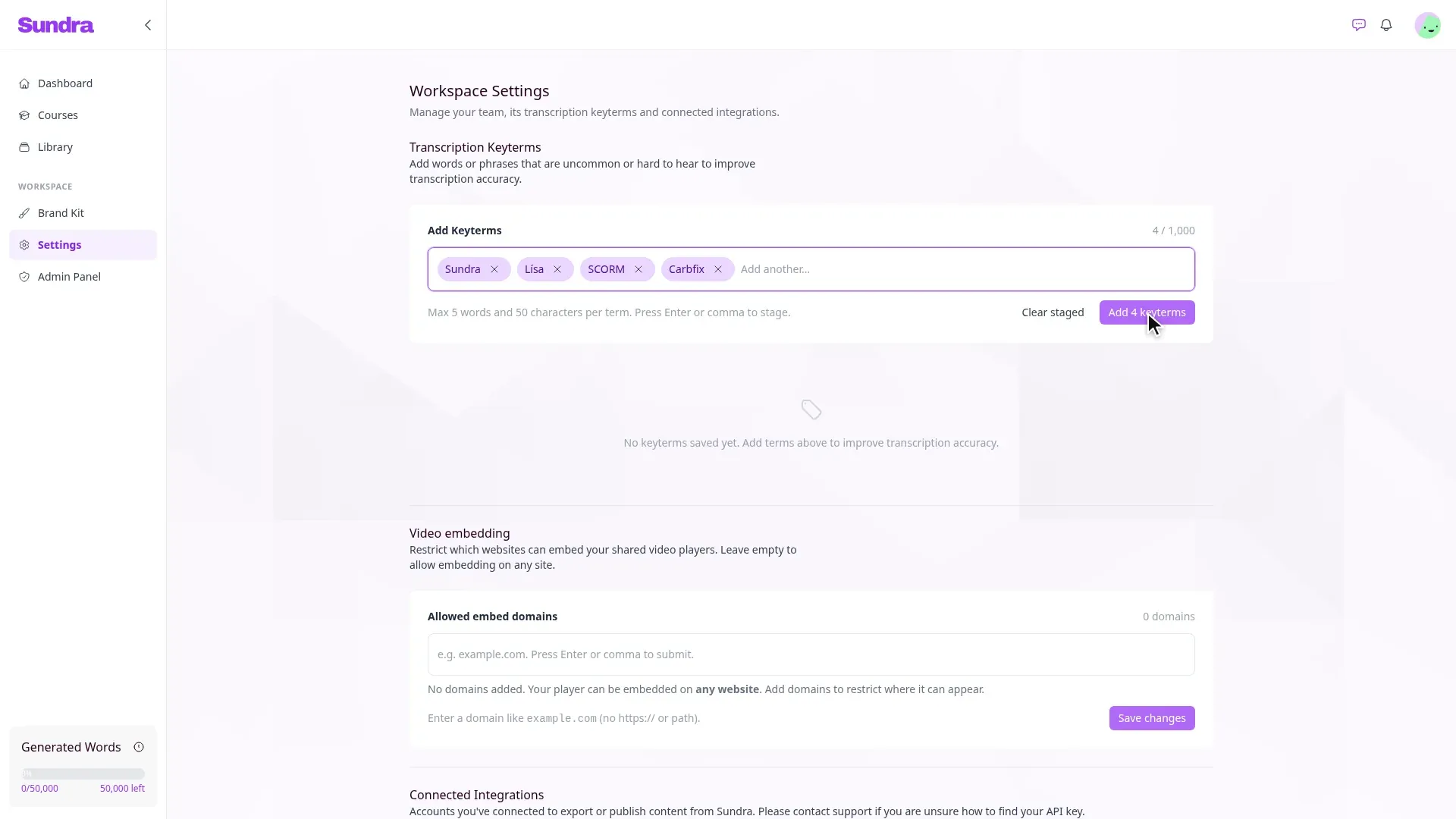
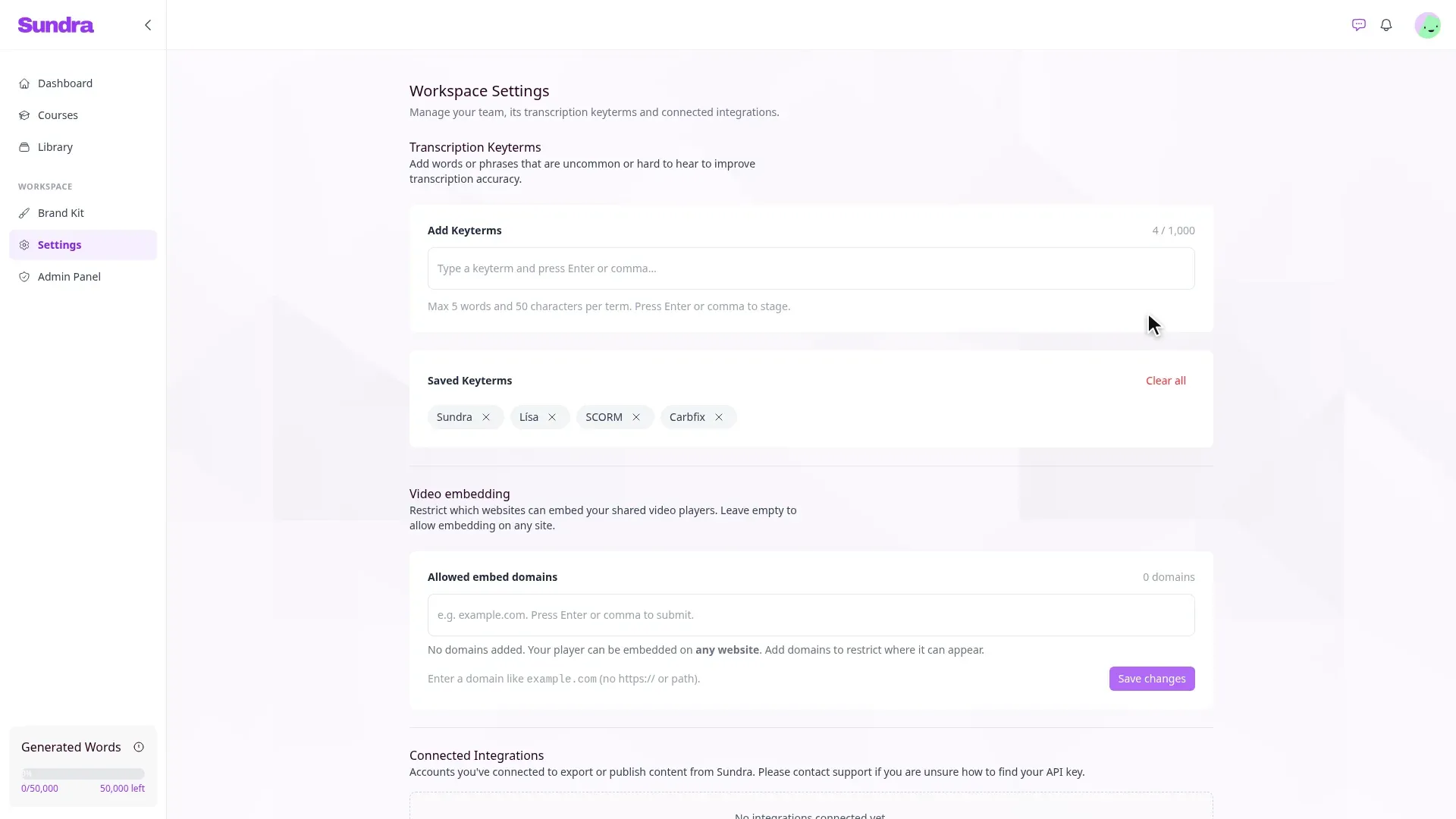
Step 4: Click Add to save them
Click the Add keyterms button (it shows how many terms are staged, e.g. Add 4 keyterms) to save the staged terms to your workspace. They move to the Saved Keyterms list below.
From here you can remove a single term with its ×, or empty the list with Clear all.
Step 5: Transcribe as usual
That’s all the setup there is. Upload your interview the way you always do, and Sundra passes your saved keyterms to the AI along with the audio.
Good to know
- Keyterms apply to new transcriptions. Videos transcribed before you added a term aren’t changed. Upload the video again if you want it re-transcribed with the updated list.
- Spell terms the way you want them to appear. The AI uses your spelling, capitalisation and accents, so Össur comes out as Össur, not Ossur.
- Keep the list current. When a project ends or a product is renamed, tidy up the list so it stays focused on the words you actually need.
That’s it!
With your keyterms in place, your transcripts start out closer to perfect, and you spend less time fixing names in the caption editor. Questions? Reach out to us at hello@sundra.io.