Sundra’s assistant can turn the material your team already has, such as handbooks, slide decks, recordings, and web pages, into a structured training course with multiple lessons. You describe who the course is for and what it should cover, the assistant drafts an outline grounded in your sources, and once you’re happy with the structure it writes every lesson for you. This guide walks you through the process, from the Dashboard to a finished course draft.
Before you begin
Gather any source materials you want the course grounded in: PDFs, Word documents, existing videos in your Library, or web links. The assistant does its best work when it has something concrete to draw from, but you can also start from a description alone.
Step 1: Open the Create course lane on the Dashboard
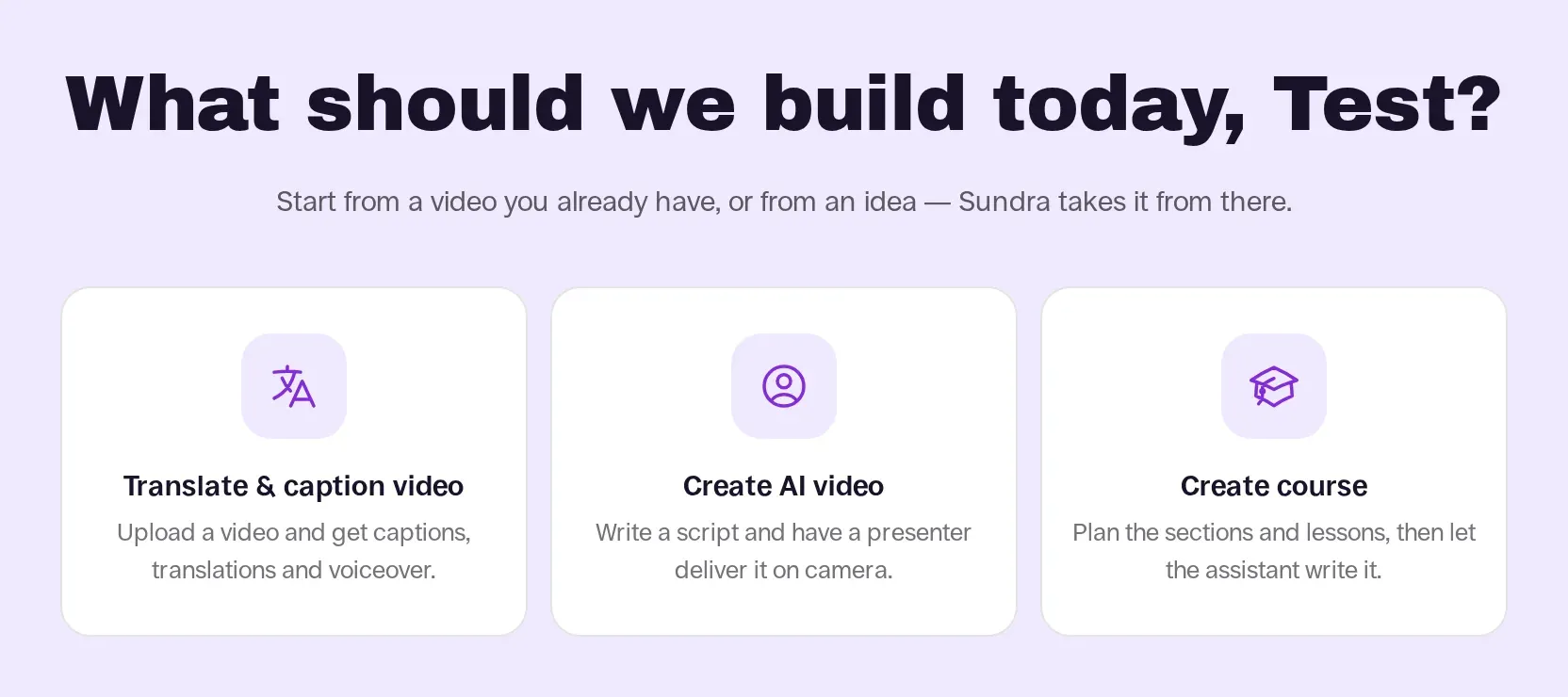
On the Dashboard, click Create course. This opens the course planning form, with the Assistant · New course panel on the right. The panel offers starter chips such as New employee onboarding, Product training, and Compliance refresher if you’d like a head start.
Step 2: Attach your sources and describe the course
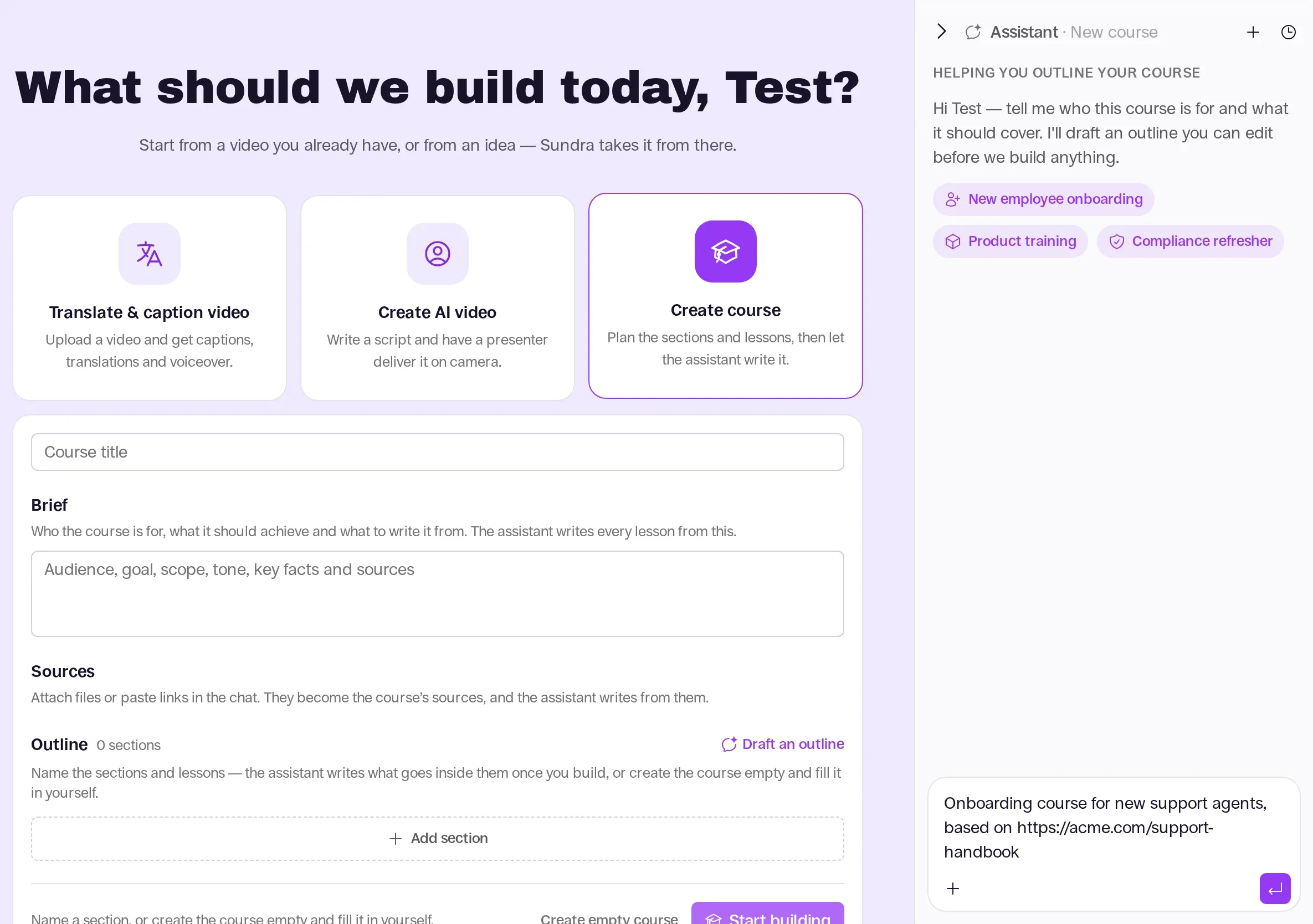
Click the + button in the assistant composer, or drag files onto the panel, to attach documents, recordings, or links. Attached items appear under Sources in the form. Then describe your audience, goal, and preferred structure in the Write anything… box and send it.
Step 3: Review and edit the proposed outline
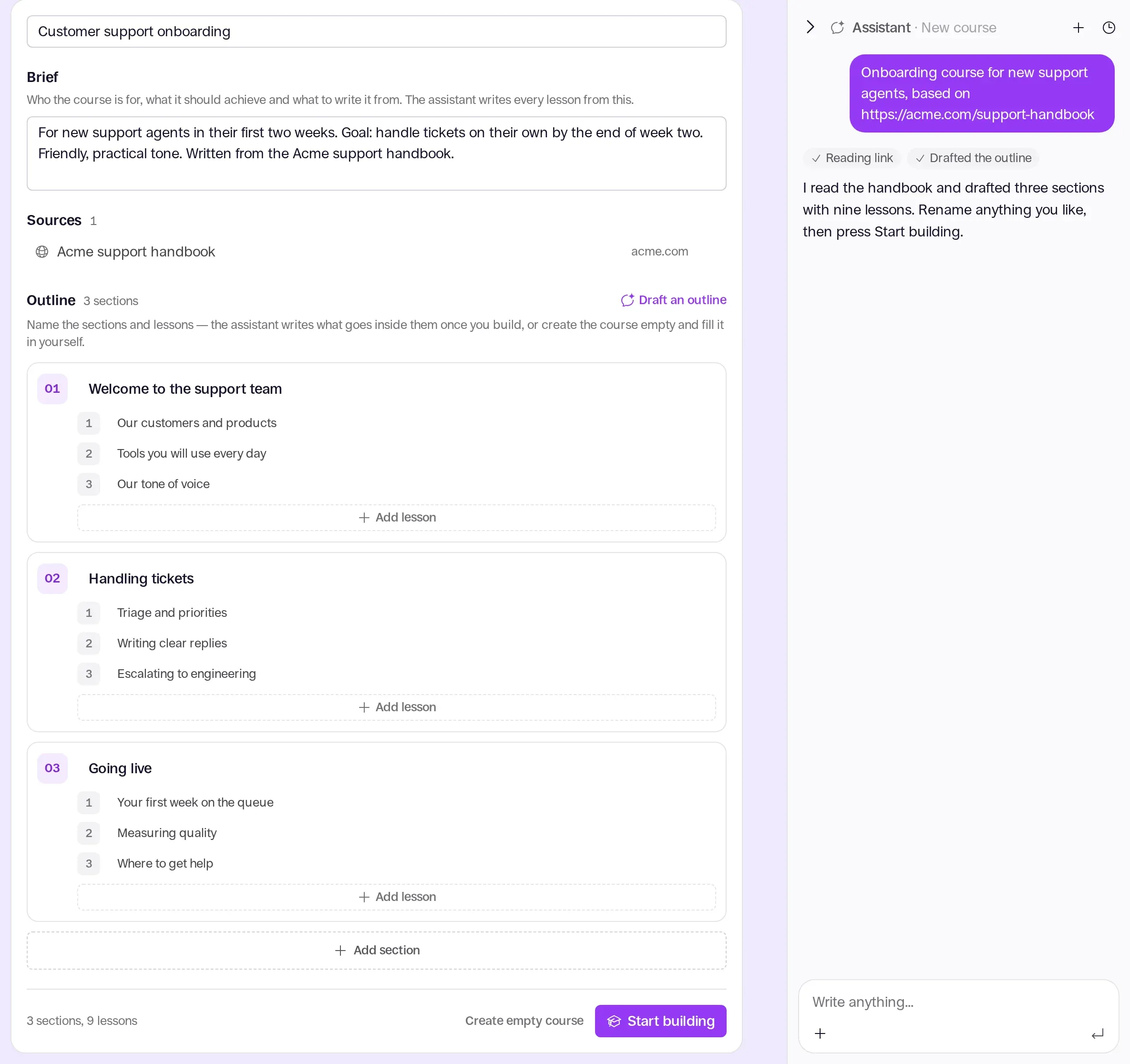
The assistant fills in the Course title, the Brief, and numbered sections and lessons under Outline. You can edit any title directly, click + Add lesson or + Add section, or ask the assistant in the chat to adjust the structure. When the outline looks right, click Start building.
Step 4: Let the assistant write your lessons
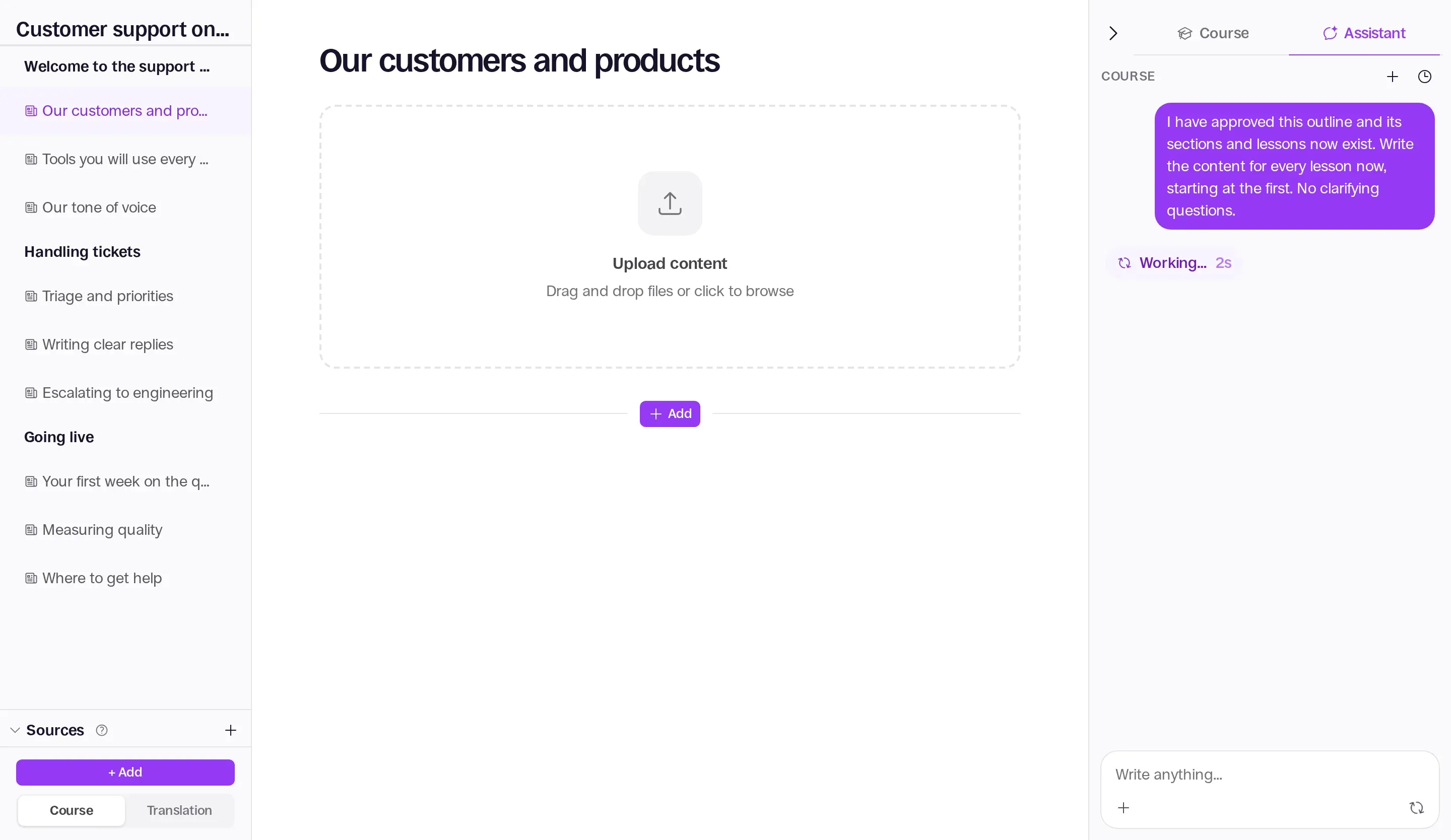
Sundra creates the course, opens the course editor, and starts the assistant writing each lesson from your brief and sources. Select any lesson in the left sidebar to review its text, add blocks with + Add, or generate an AI presenter video.
Good to know
- Prefer to write the lessons yourself? Choose Create empty course to skip the assistant and start from a blank course.
- To add a presenter to a lesson, see Creating avatar videos with the Sundra assistant.
- To turn an existing recording into written material, see Generating text from a video with the Sundra assistant.
That’s it!
You’ve turned your existing material into a structured course draft, ready to review and refine. If you have any questions, reach out to us at hello@sundra.io.