A training session, an all-hands or an expert interview holds far more than the video itself: the key points, the decisions, the quotes worth sharing. Once Sundra has captioned a video, the assistant can turn what was said into text you can use right away: key notes, a summary, meeting minutes or a first draft of a blog post.
This guide shows you how to ask for it, from the caption editor to the finished text.
Before you begin
You’ll need a video in Sundra that has finished captioning. The assistant works from the captions, so the text it writes is only as accurate as they are. Fix any misheard names first (or add them as Transcription Keyterms before you upload).
Step 1: Open the assistant
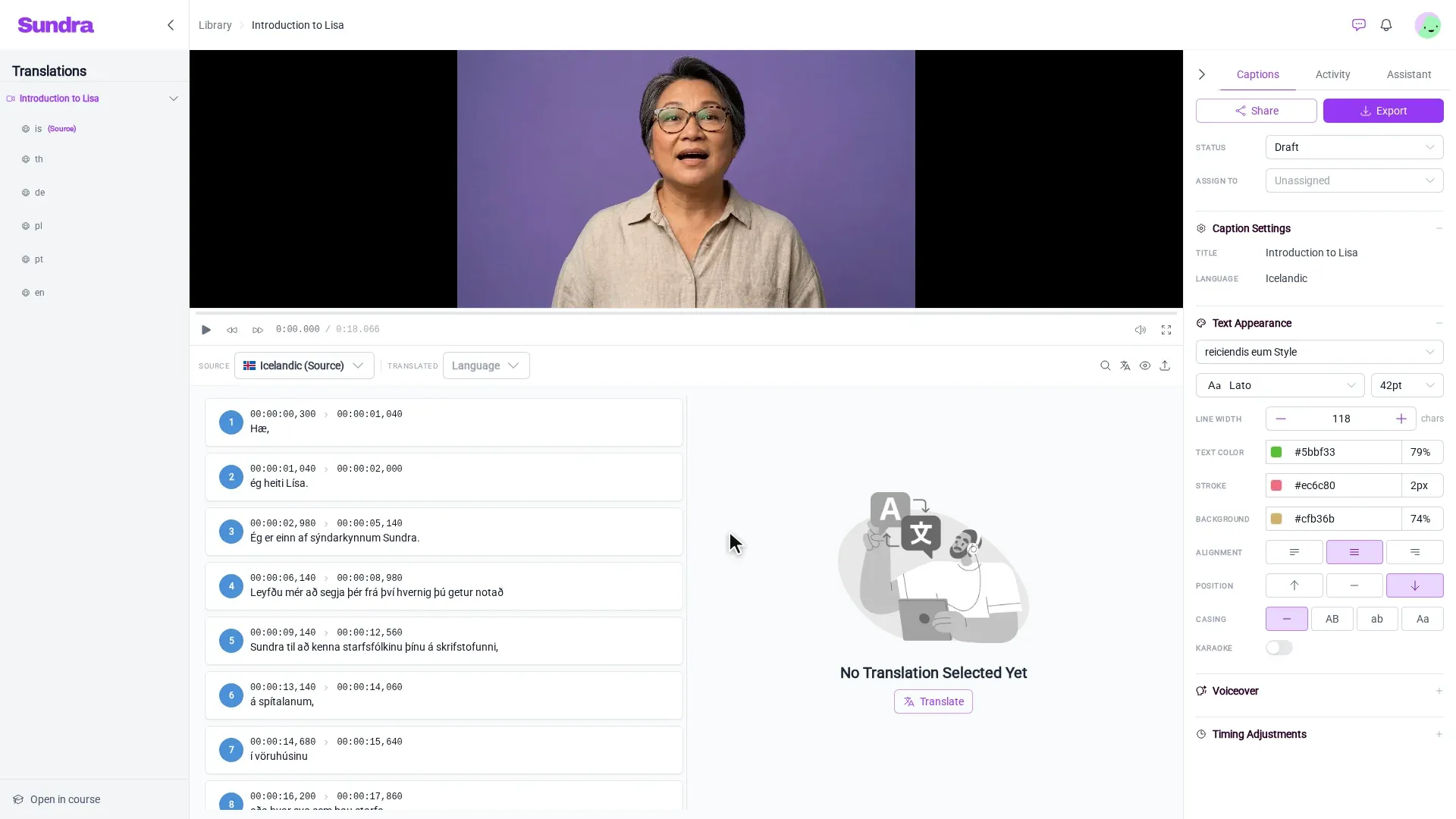
Open your video from the Library. In the panel on the right of the editor, click the Assistant tab, next to Captions and Activity.
Step 2: Ask for the text you need
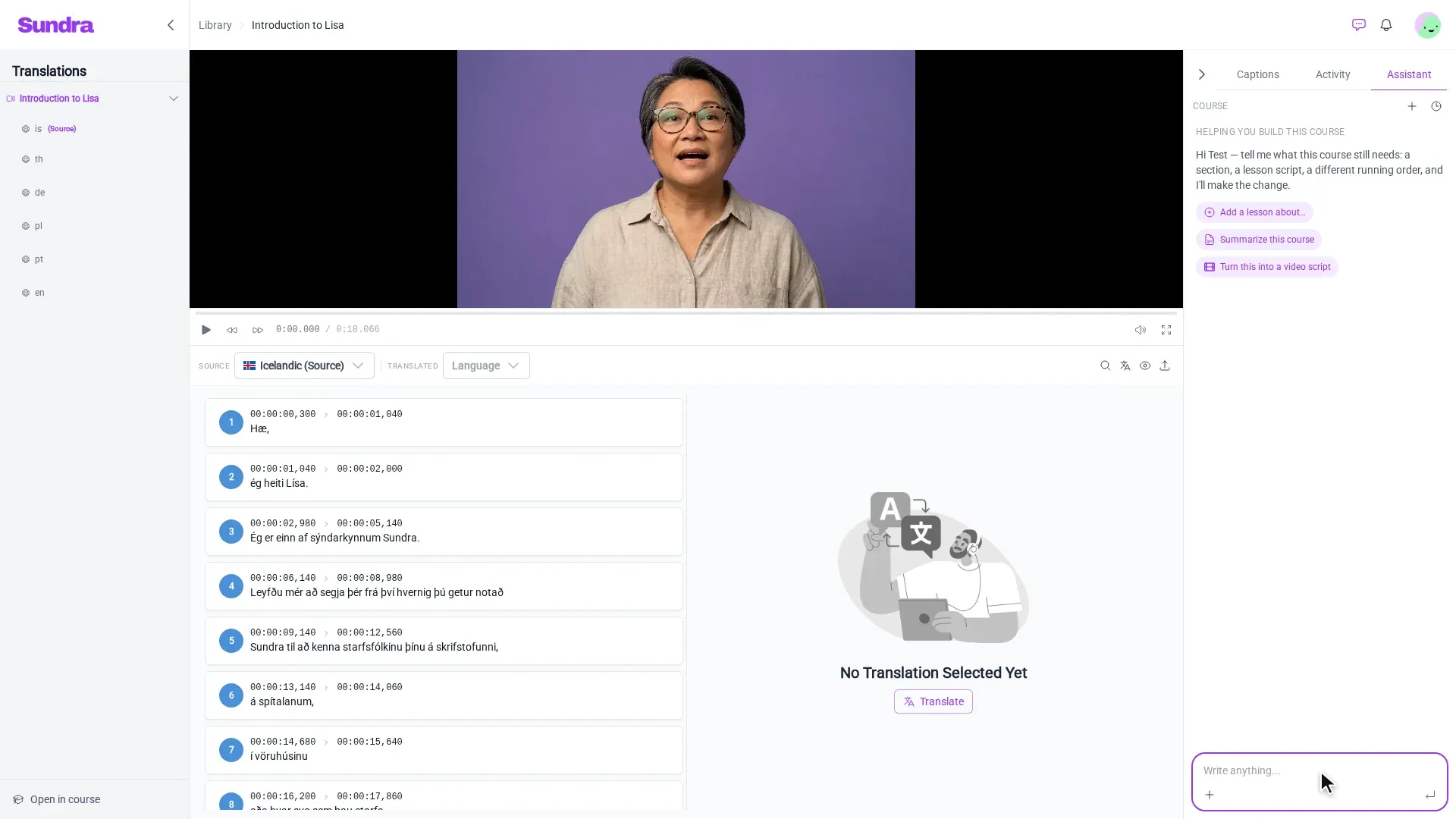
Click into the Write anything… box at the bottom of the panel and describe what you want, in your own words. For example:
- “Summarize this video into key notes”
- “Write meeting minutes with the decisions and action items”
- “Draft a short blog post based on this talk”
- “List the three most important points for a new employee”
The more specific you are about length, tone and audience, the closer the first draft will be.
Step 3: Send it and let the assistant work
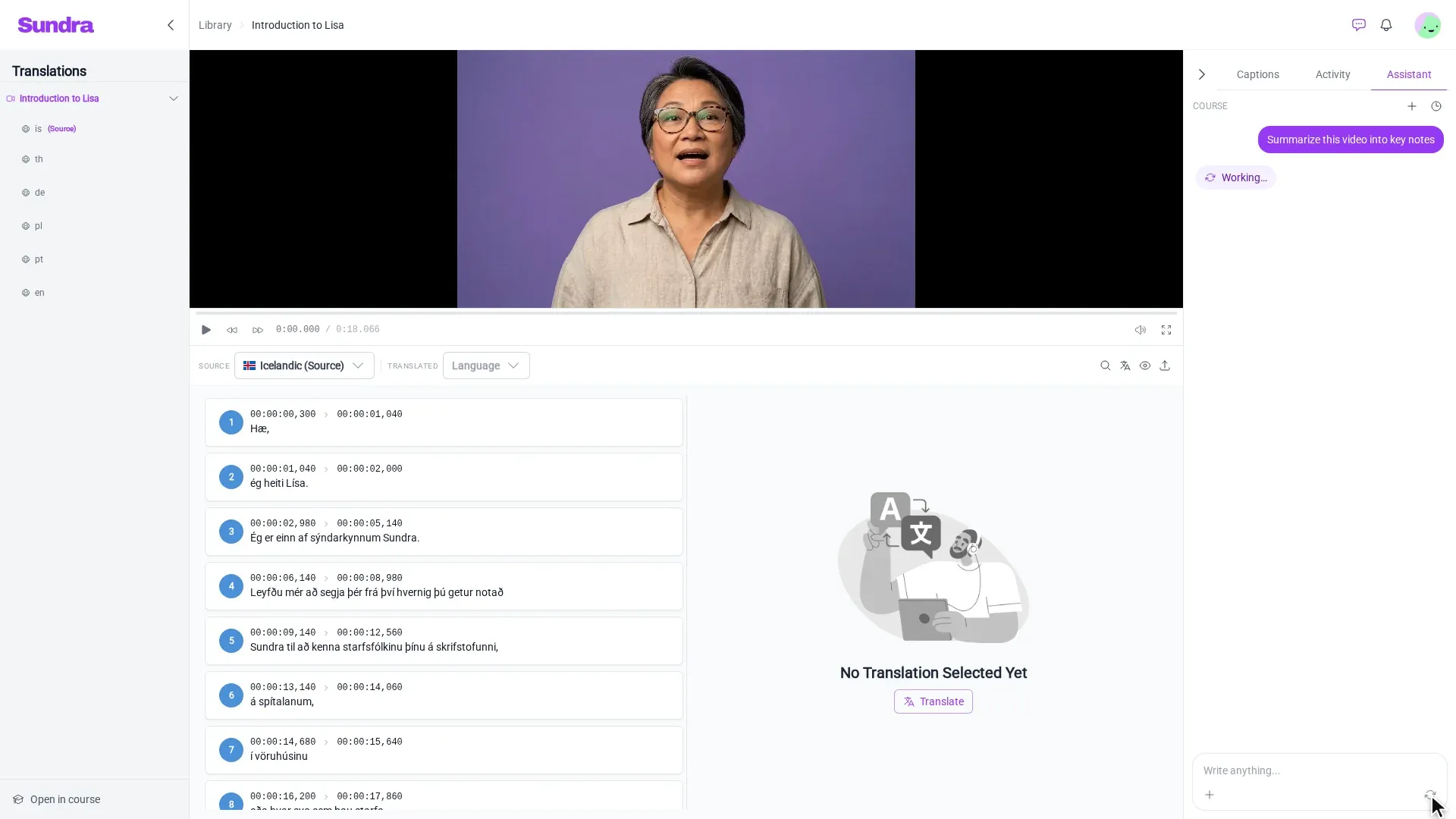
Press Enter (or click the send button) to generate your text. The assistant reads the video’s captions (you’ll see Reading captions while it does) and then writes its answer.
Step 4: Copy your text
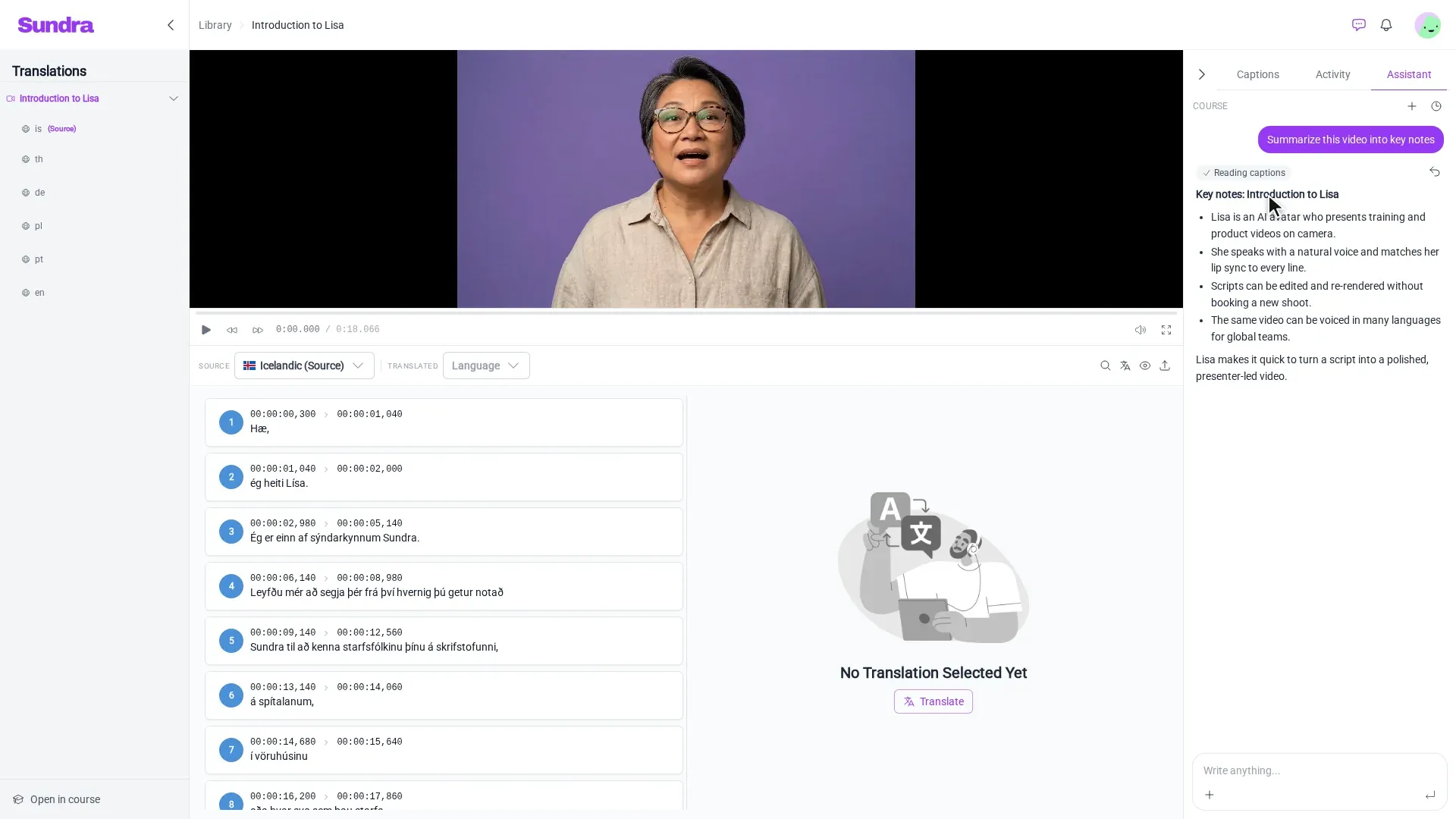
The answer appears in the panel, formatted with headings and bullet points. Select the text and copy it into your document, email, LMS or intranet page.
Not quite right? Just reply in the same conversation (“make it shorter”, “add a section on safety”, “write it for managers”) and the assistant revises it.
Ideas for what to ask
- Key notes and summaries for people who missed the session
- Meeting minutes with decisions and action items
- Blog post or newsletter drafts from a talk or interview
- Quiz questions to check understanding after a training video
- Caption fixes and translations, straight from the same panel
Good to know
- The assistant answers about the video you have open. Open a different video to ask about it.
- Check the facts. The assistant works from what was said in the video, but always read generated text through before you publish it.
- Need the word-for-word transcript instead? See Downloading text transcripts and scripts.
That’s it!
Every captioned video is now a source of ready-to-use text. Questions? Reach out to us at hello@sundra.io.