Sometimes you need the words without the video: a printable handout for a training session, a script to review with a subject-matter expert, a text version for an accessibility request, or source material for a course page. Every captioned video in Sundra already has a full transcript. Here are two ways to get it out.
- Download a TXT file from the Export dialog: best for a clean, complete transcript, and for several languages at once.
- Ask the assistant for the transcript: best when you just want to copy the text into another document.
Before you begin
You’ll need a video in Sundra that has finished captioning. For transcripts in other languages, translate the captions first. Every translation shows up as an export option.
Option 1: Download a TXT file
Step 1: Open the Export dialog
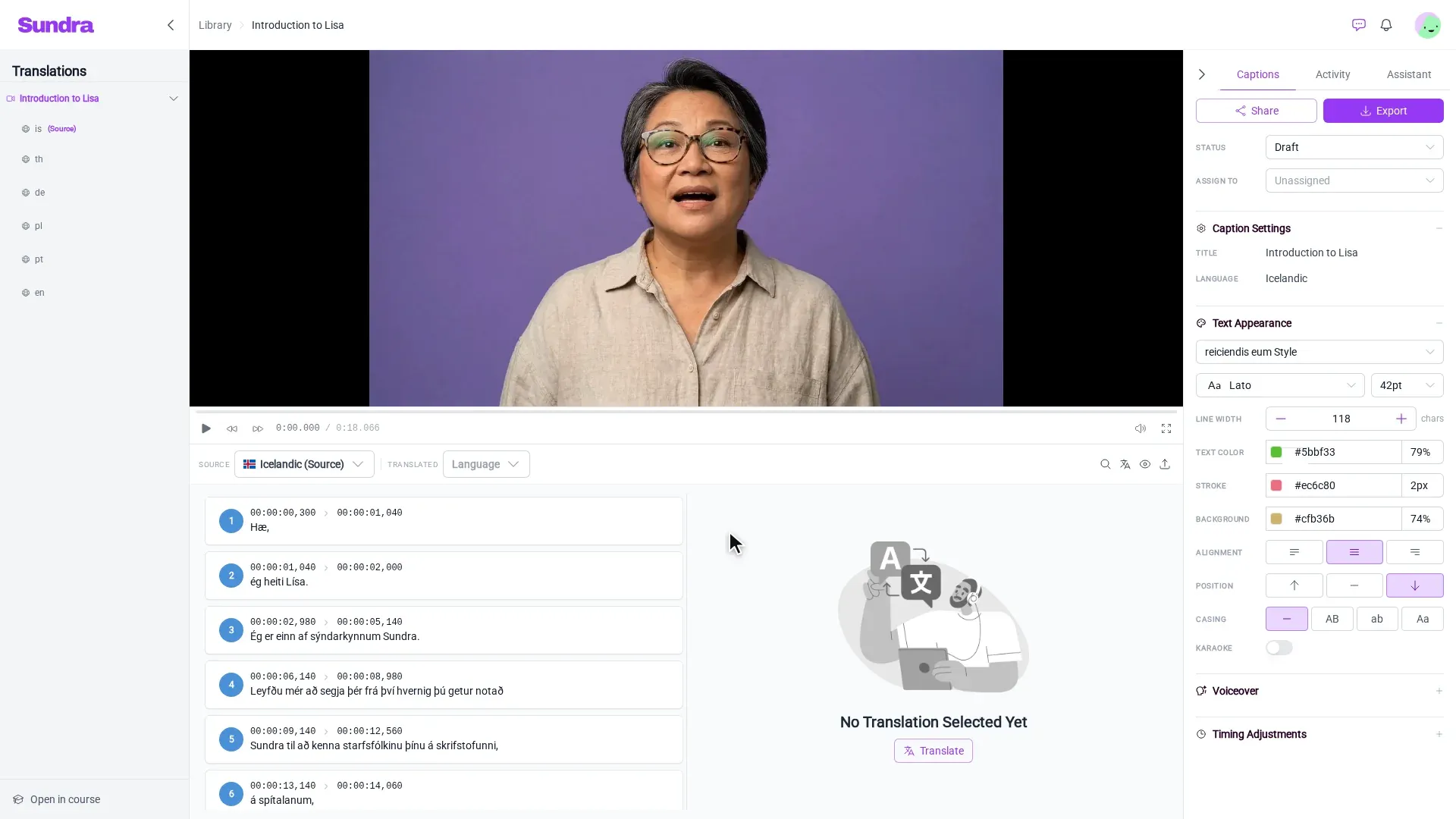
Open your video from the Library. In the Captions panel on the right, click Export. The Export Project dialog opens on the Captions tab, which is the one you want.
Step 2: Pick your languages
Leave Export To set to Download File. Then open the Languages dropdown and pick the language, or languages, you want a transcript in. It lists the source language and every translation of the video.
Step 3: Choose Text file (.txt)
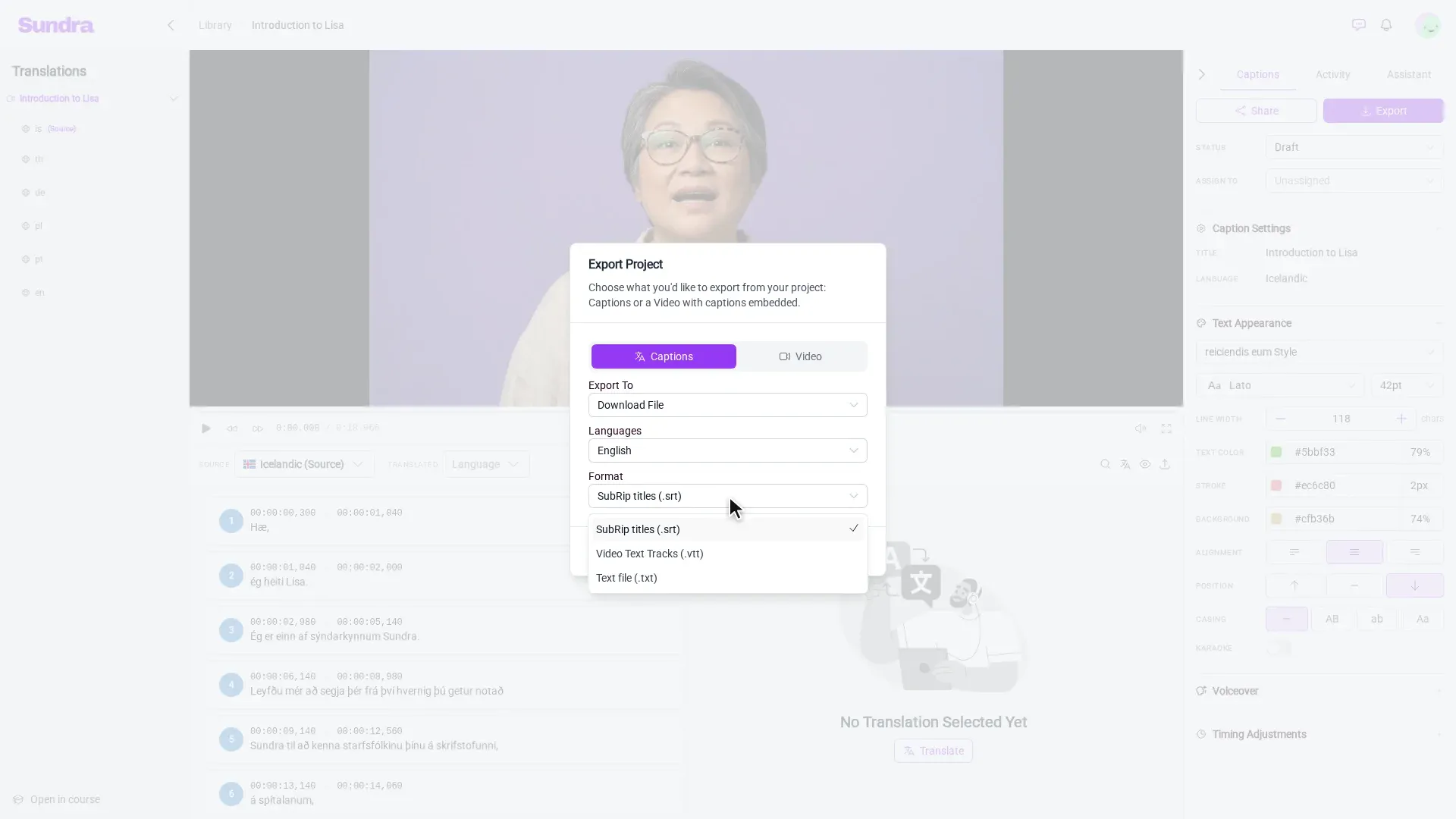
Open the Format dropdown and choose Text file (.txt). That gives you the spoken text only (no timecodes or numbering), ready to read, print or paste.
Need subtitles instead? The same menu offers SubRip titles (.srt) and Video Text Tracks (.vtt), the caption formats most video players and LMSs accept.
Step 4: Click Export
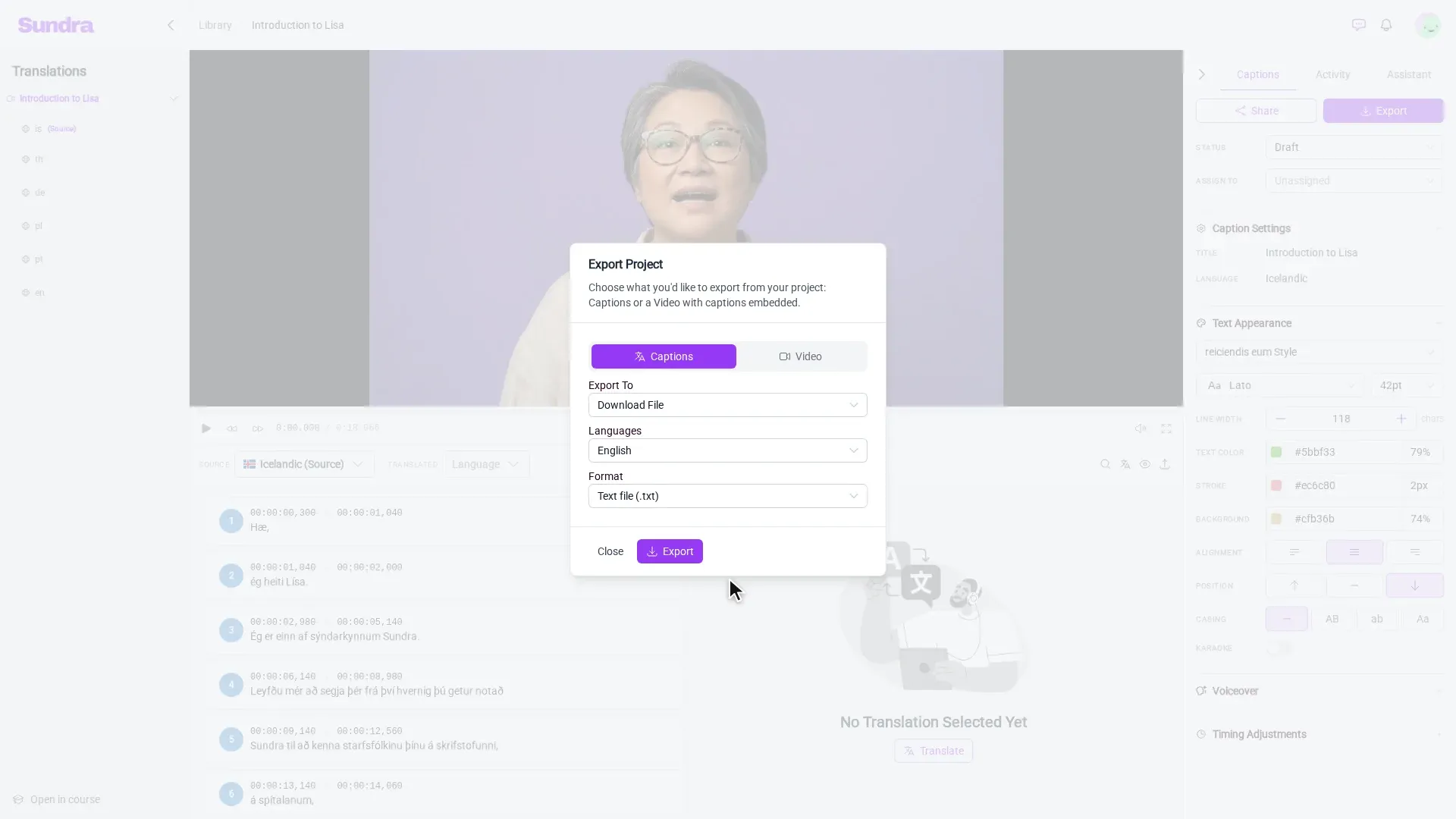
Click Export, and the transcript downloads to your computer. Pick several languages and you get a single ZIP file with one transcript per language.
Option 2: Ask the assistant
Step 1: Open the assistant
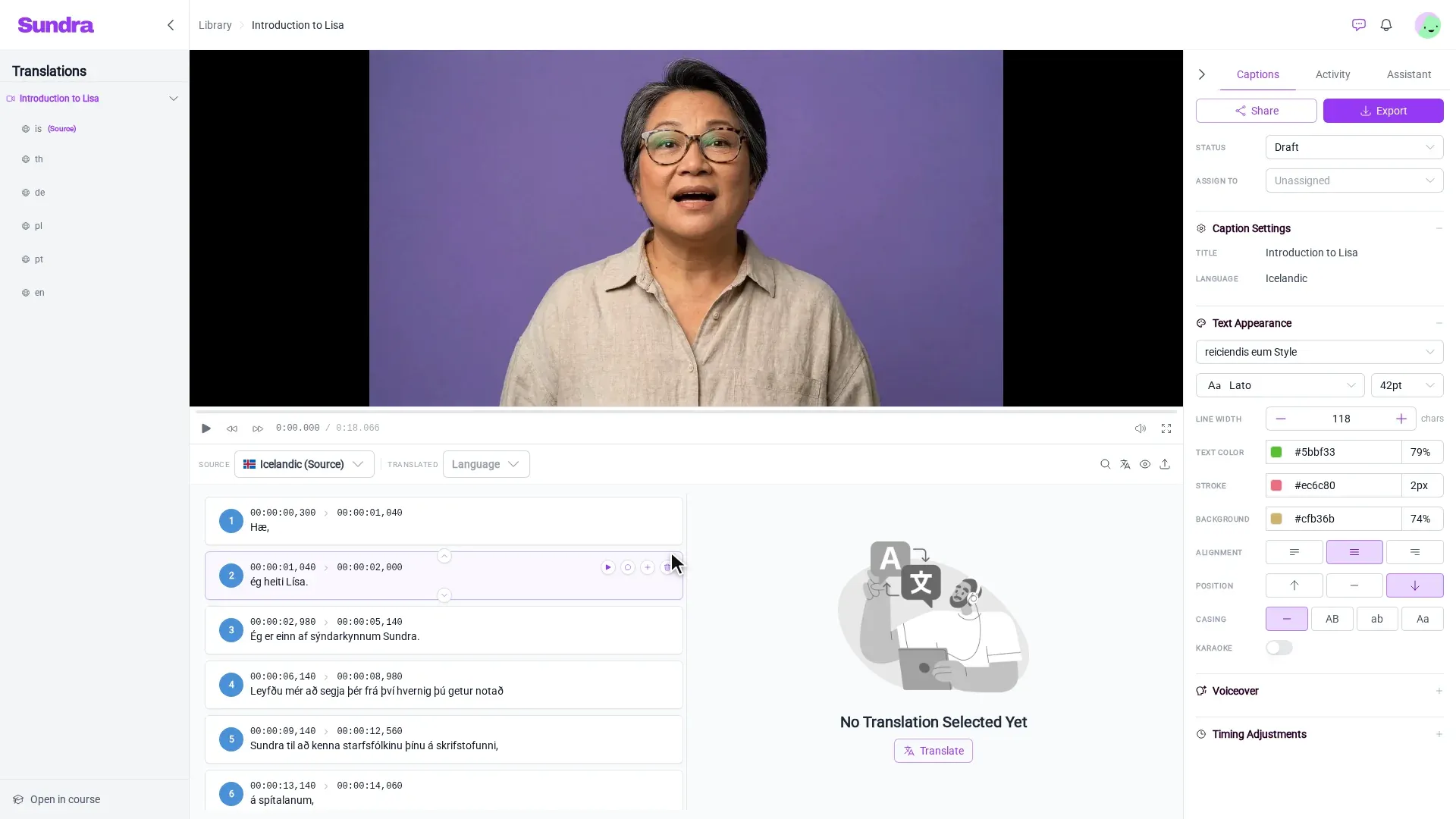
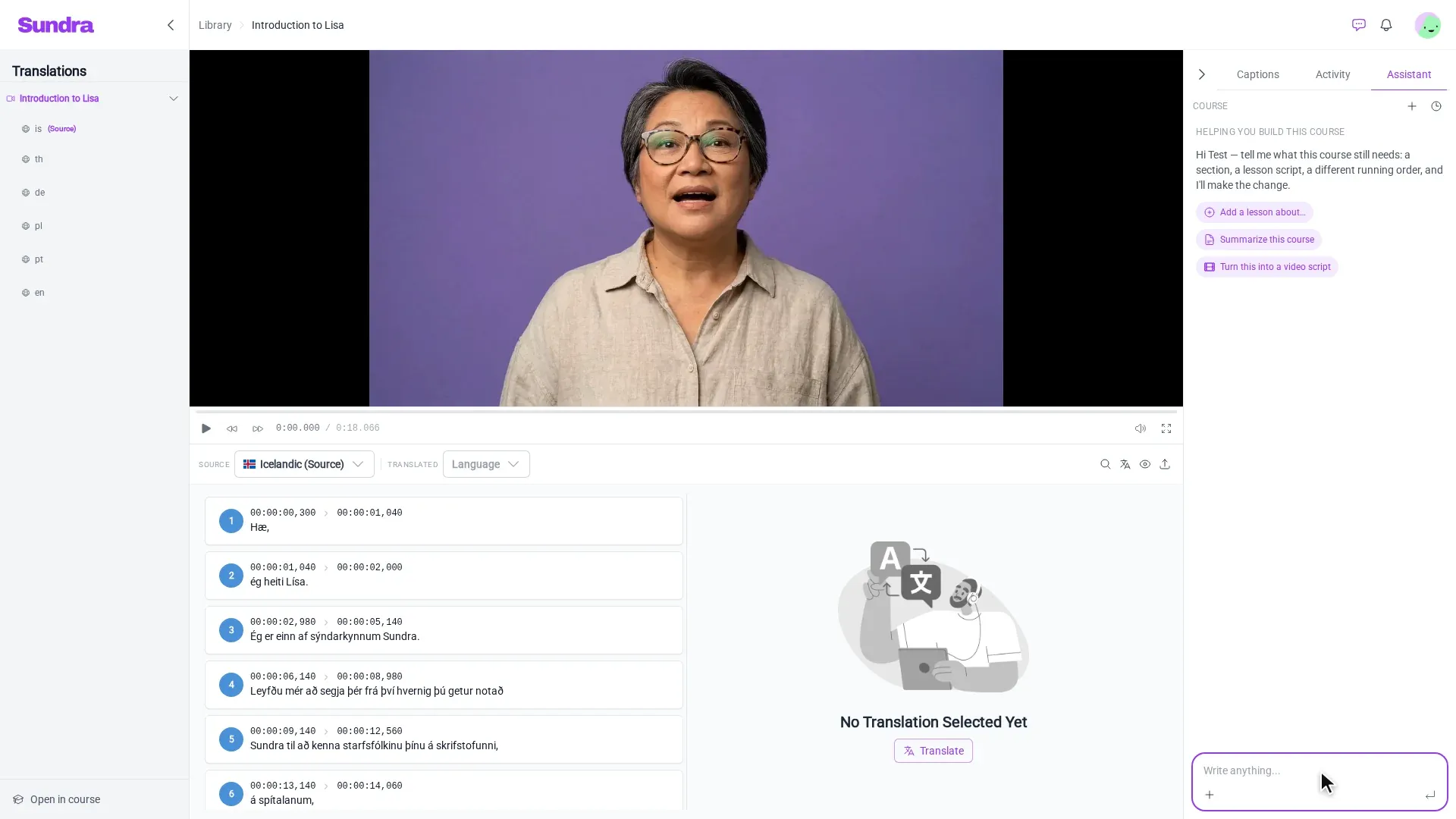
In the panel on the right of the editor, click the Assistant tab.
Step 2: Ask for the transcript
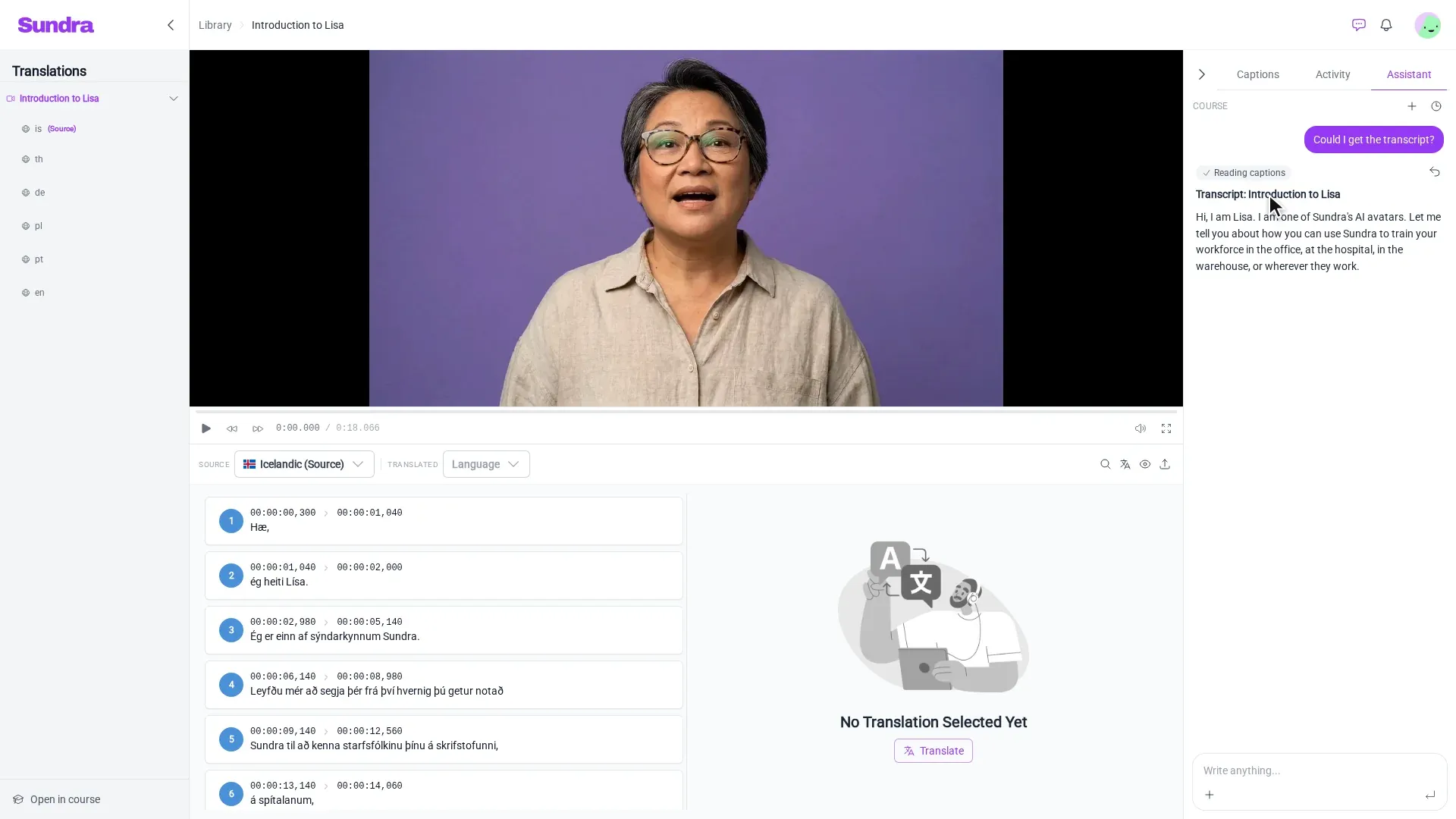
Type a request into the message box, such as “Could I get the transcript?”, and press Enter. The assistant reads the video’s captions and writes the transcript out as text.
Step 3: Copy the text
The complete transcript appears in the panel. Select it and copy it into your document.
The assistant can also reshape the text for you: ask for “the transcript as a script with speaker notes”, “the transcript in German” or “the transcript split into paragraphs”.
Good to know
- The transcript matches your captions. Any fixes you make in the caption editor show up in the next export, so correct names and terms before you download.
- TXT for reading, SRT/VTT for playing. Use a TXT file for documents and handouts; use SRT or VTT when the captions need to play in time with the video.
- Want summaries rather than the full text? See Generating text from a video.
That’s it!
Your transcript is ready to share, print or build on. Questions? Reach out to us at hello@sundra.io.