With Sundra’s assistant you can go from an idea to a finished AI presenter video without leaving the Dashboard. The assistant drafts your script, adds expression cues so the presenter sounds natural, and lets you preview the voice before anything is rendered. This guide shows you how to write, configure, and generate an avatar video step by step.
Before you begin
Avatar videos require AI video to be enabled on your workspace. If you’d like your default presenter and studio backgrounds pre-selected, set up your brand kit first; see Importing a brand kit from your website.
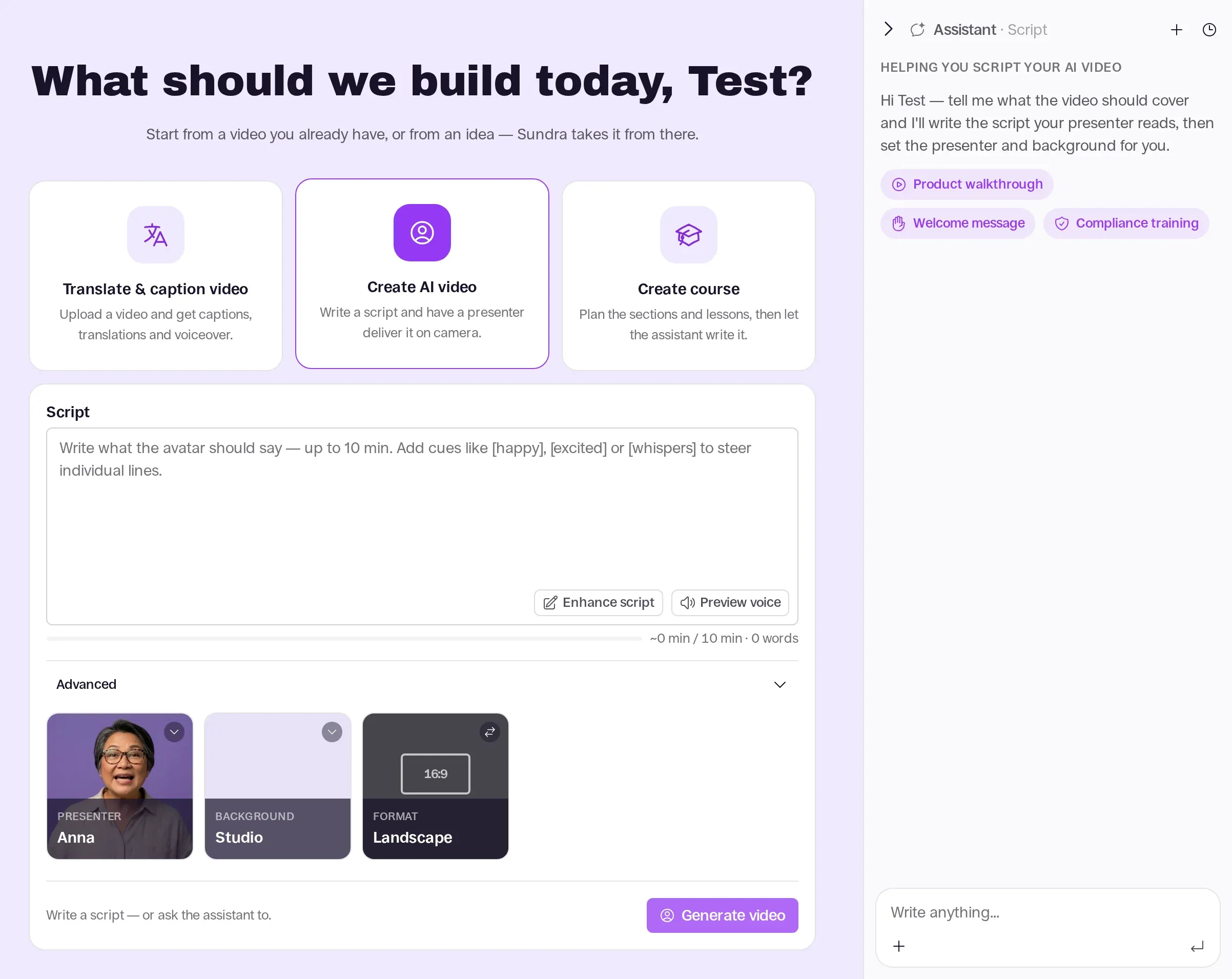
Step 1: Select Create AI video on the Dashboard
On the Dashboard, click Create AI video. This opens the script editor, with the Assistant · Script panel on the right. The panel offers starter chips such as Product walkthrough, Welcome message, and Compliance training if you’d like a head start.
Step 2: Draft and refine your script with the assistant
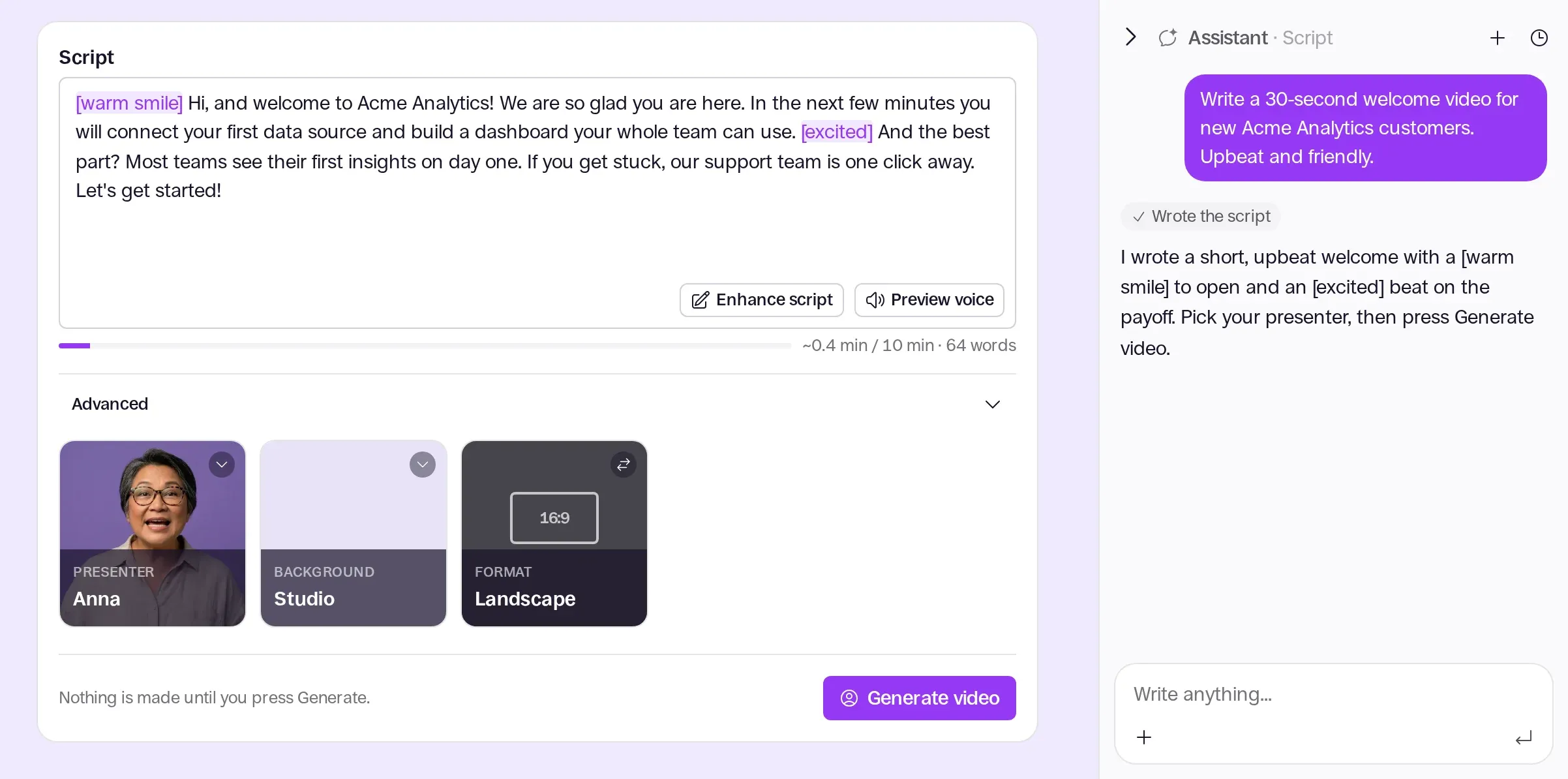
In the Write anything… box, ask the assistant to write a script, or attach a source document for it to work from. The assistant fills in the Script box on the left and can include expression cues in brackets, such as [warm smile], [happy], [excited], or [whispers]. You can also click Enhance script to add cues automatically, or Preview voice to listen to the delivery before rendering.
Step 3: Choose presenter, background, format, and advanced settings
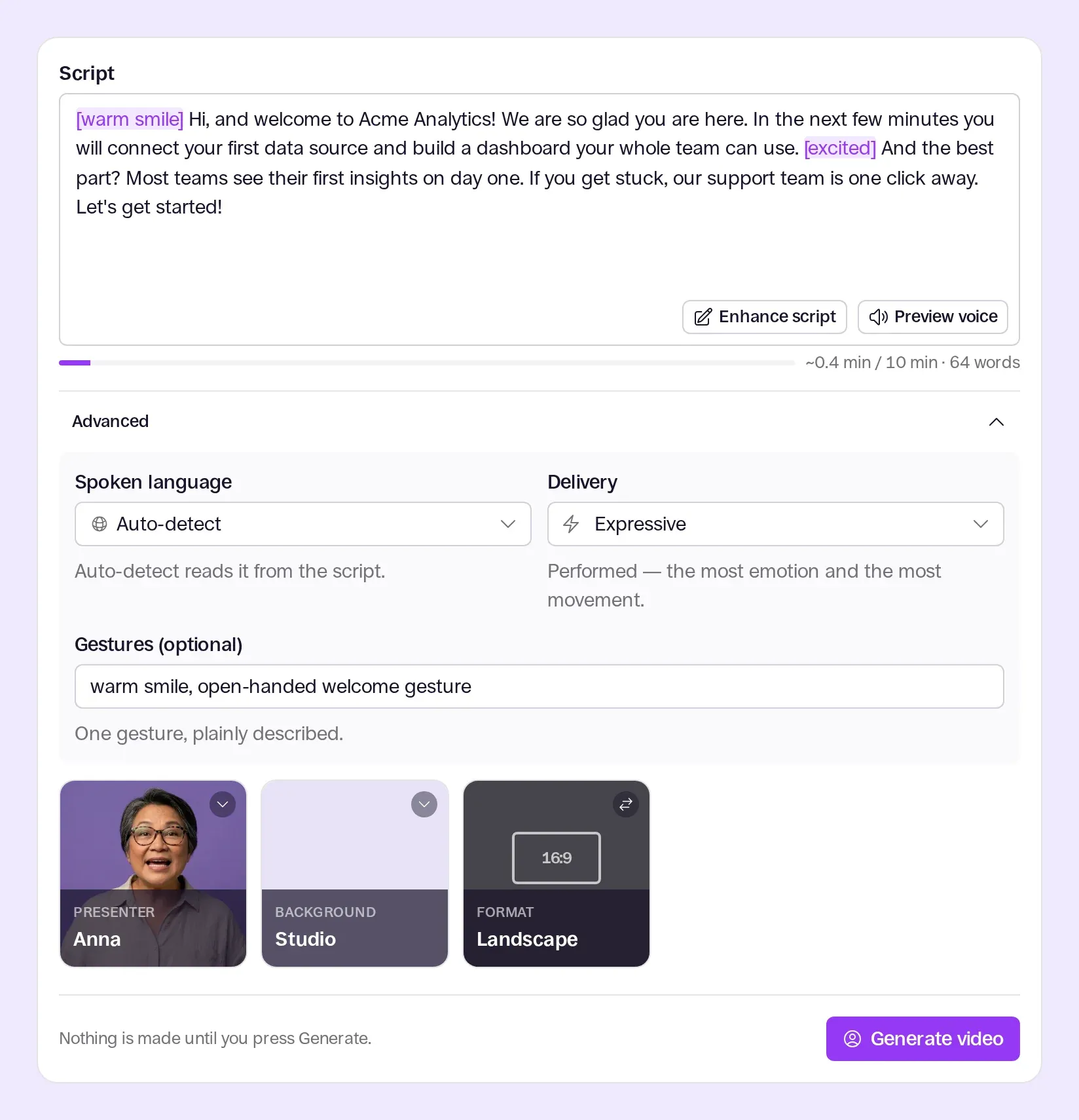
Pick your Presenter, Background, and Format, such as 16:9 Landscape. Expand Advanced if you want to override the Spoken language, which defaults to Auto-detect, adjust the Delivery, or add optional Gestures.
Step 4: Generate your video
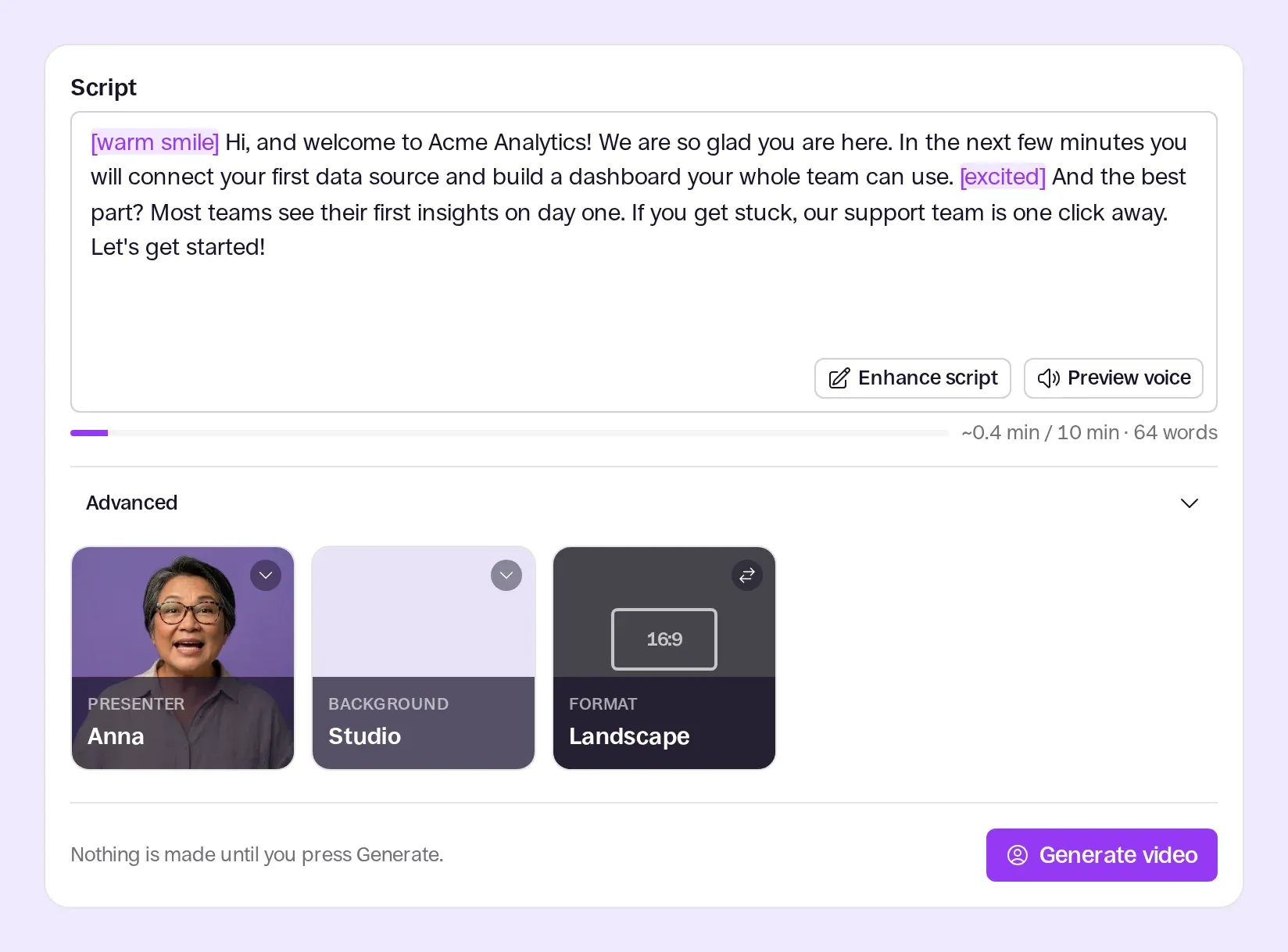
Nothing is rendered until you click Generate video. Once you do, Sundra starts rendering your video and opens it in your Library, where captions are generated automatically.
Good to know
- To build a full training course around your videos, see Creating a course with the Sundra assistant.
- To share a finished video with captions baked in, see Exporting videos with burnt-in subtitles.
That’s it!
You’ve written a script, chosen your presenter, and generated an AI presenter video. If you have any questions, reach out to us at hello@sundra.io.