Once your captions are ready, you’ll often want a video file with the subtitles burned in, drawn directly onto the picture, so they show up everywhere the video plays: in your LMS, on an intranet page, in a social post, or on a screen in the break room. No separate caption file, no player settings to get right.
This guide walks you through exporting that video from Sundra, from the editor to a downloaded MP4.
Before you begin
You’ll need a video in Sundra that has finished captioning. If you want subtitles in other languages, translate the captions first. Every translation you’ve made shows up as an export option.
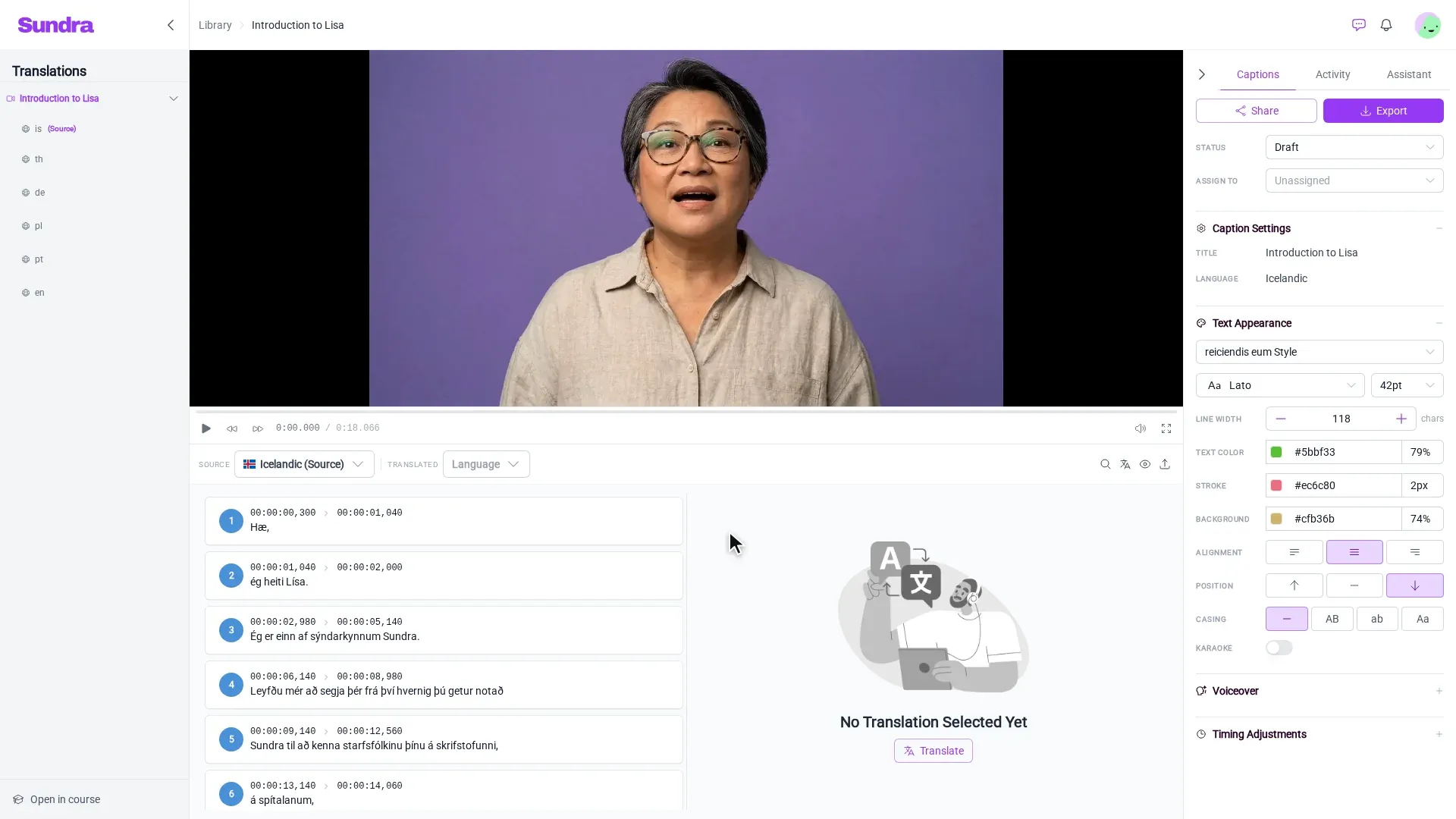
Step 1: Open your video and click Export
Open your video from the Library. In the editor, the Captions panel on the right has an Export button at the top. Click it.
Step 2: Choose the Video tab
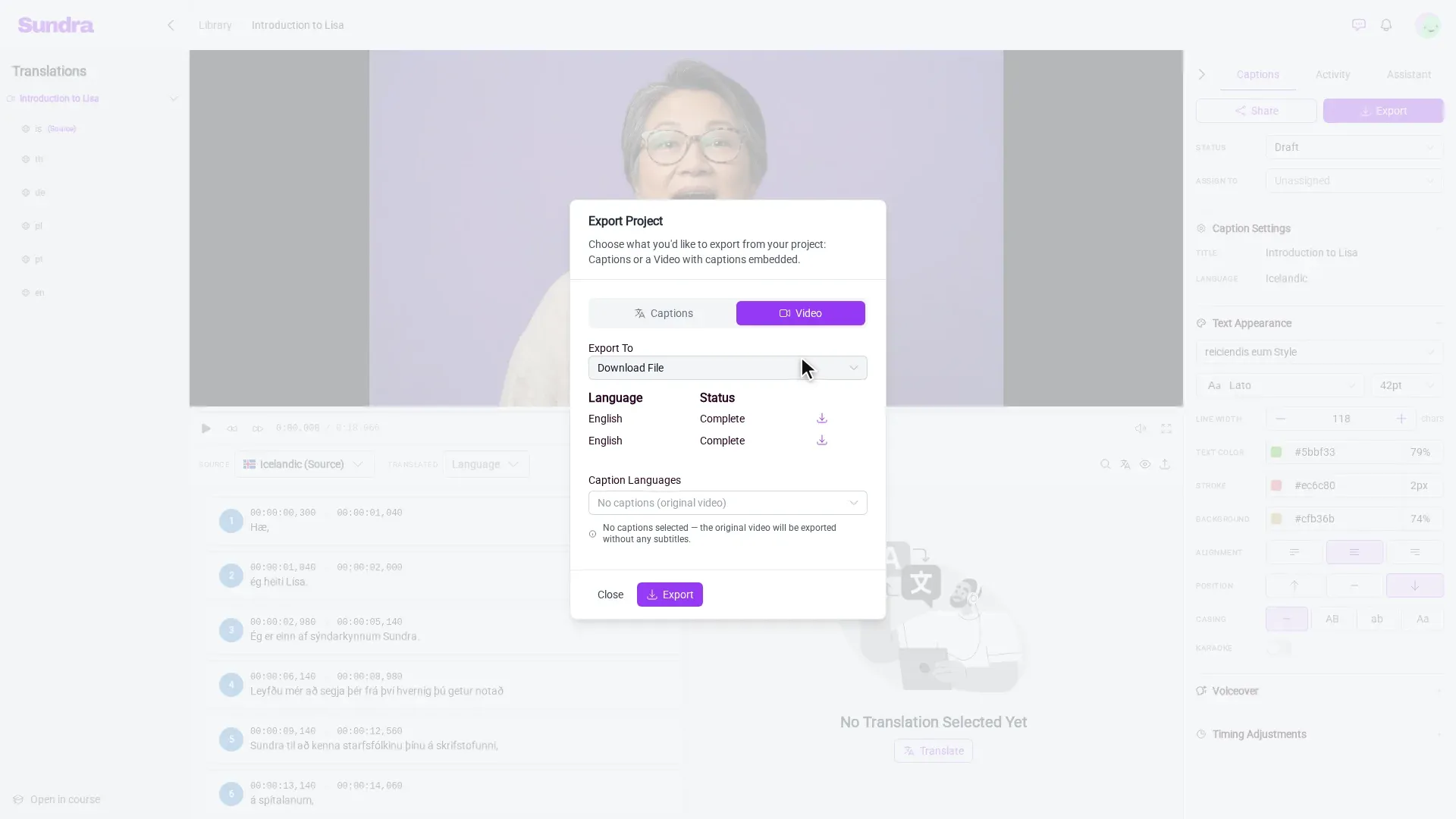
The Export Project dialog lets you export either Captions (subtitle files such as SRT or VTT) or a Video with the captions embedded. Select the Video tab.
Leave Export To set to Download File to get an MP4 you can save.
Step 3: Pick your caption languages
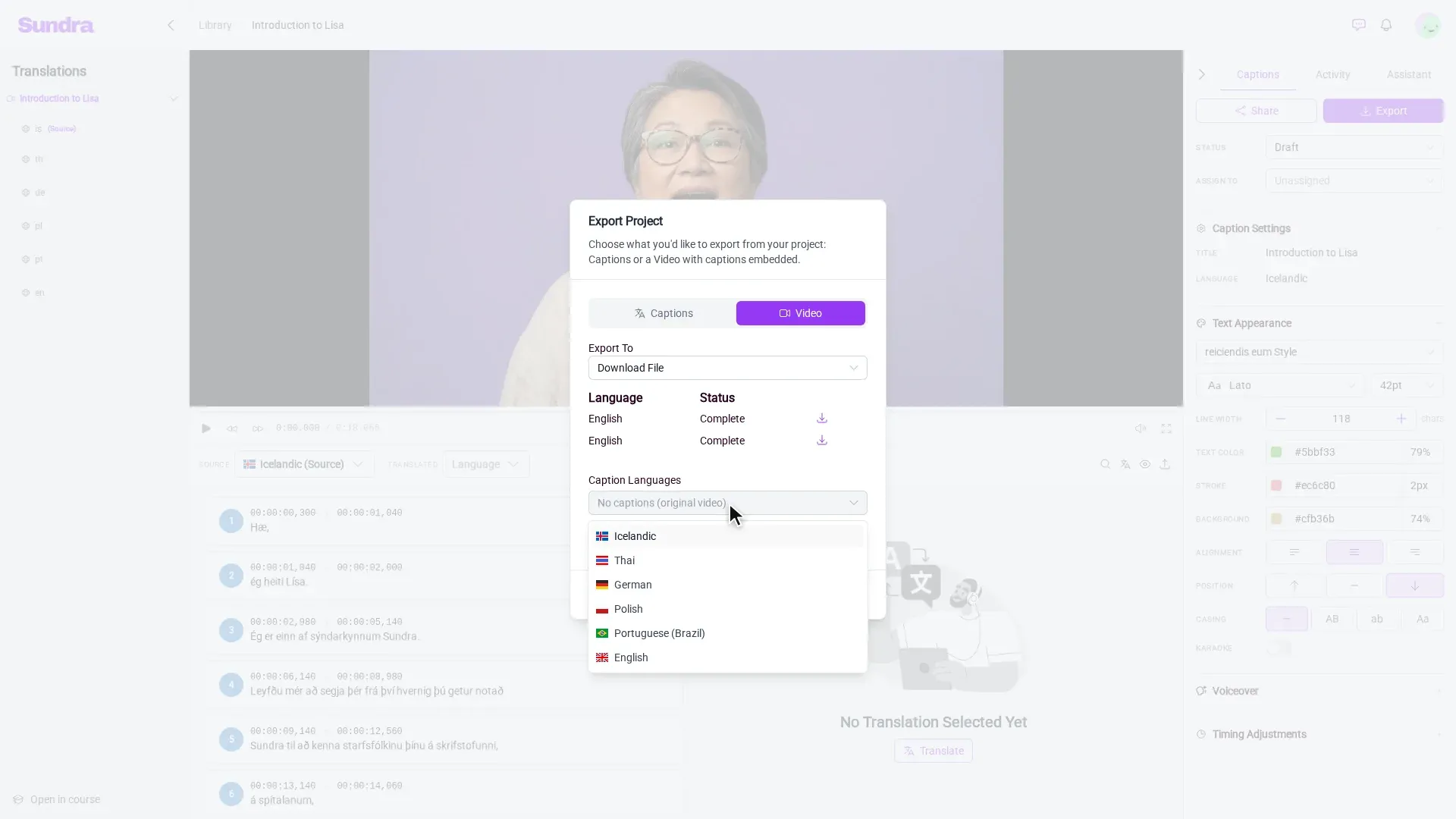
Open the Caption Languages dropdown and pick the languages you want burned in. It starts at No captions (original video), and lists your source language plus every translation of the video.
You can select more than one language: Sundra renders one video per language, so you get a separate MP4 for each.
Step 4: Click Export
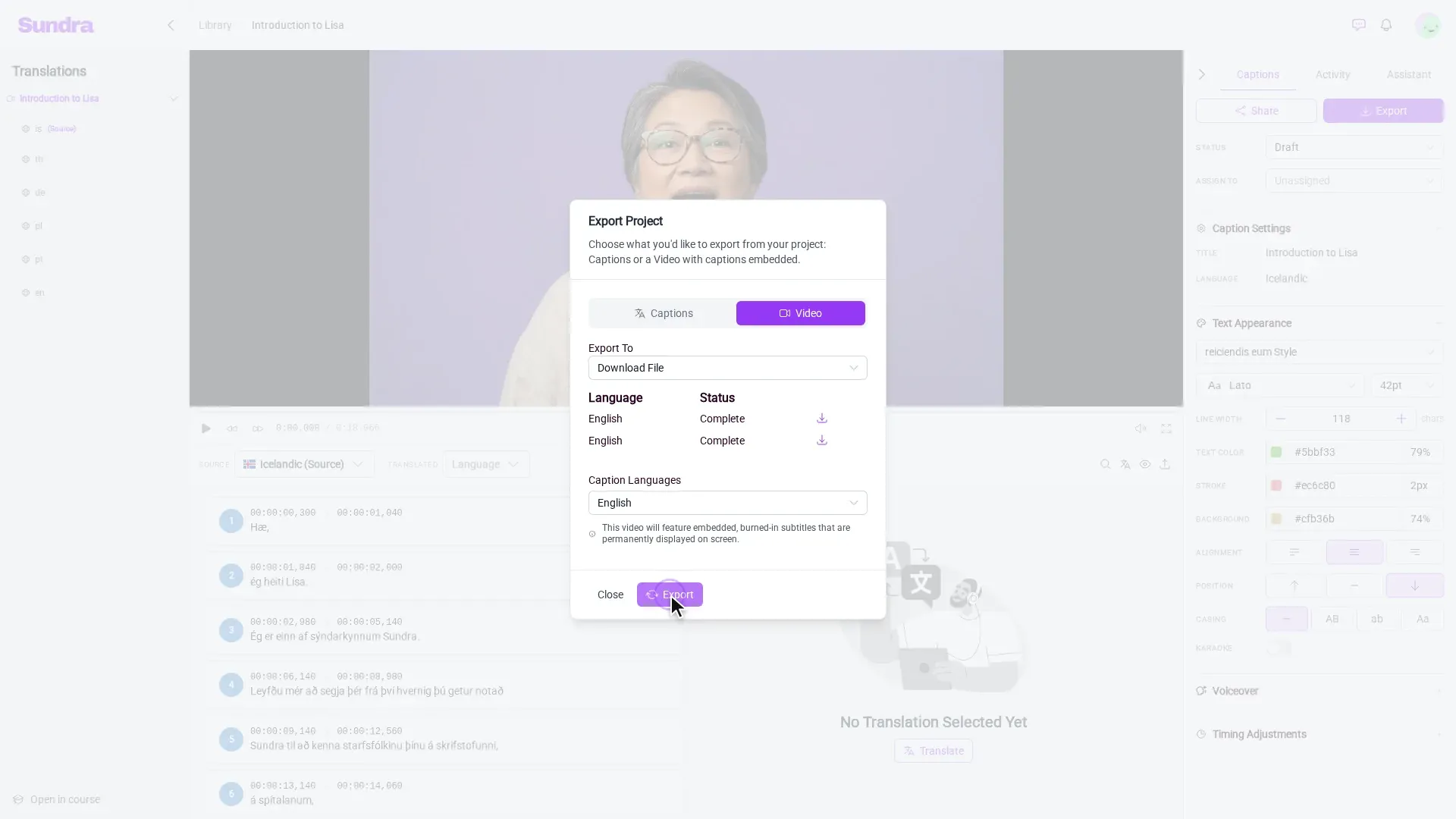
Click Export. The render runs in the background, so you can close the dialog and keep working (edit another video, translate, or grab a coffee).
Step 5: Follow the progress in the Exports widget
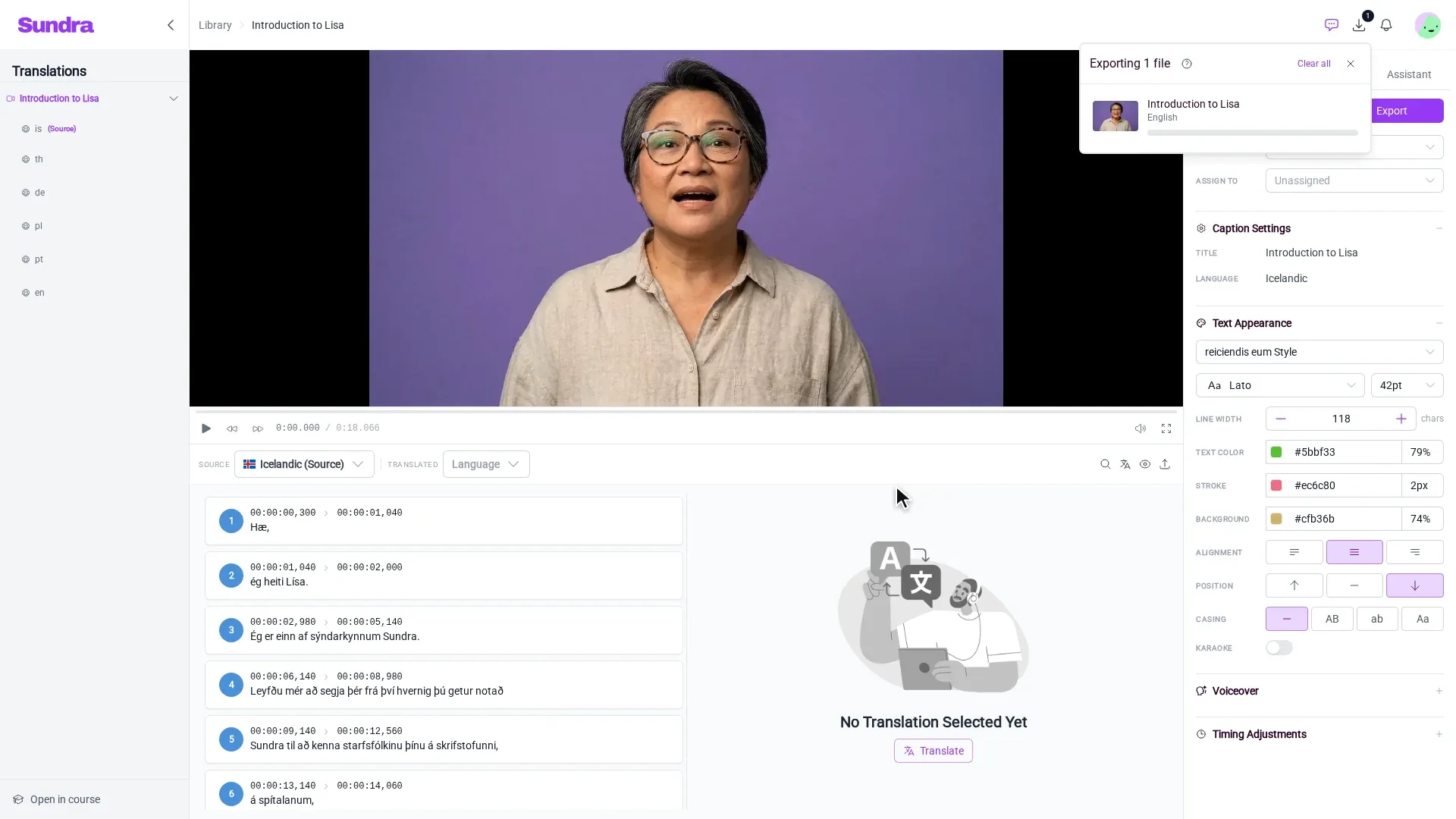
Click the download icon in the top bar to open the Exports widget. Each video being rendered appears there with its language and a progress bar. A badge on the icon tells you how many exports are running, even when the widget is closed.
Step 6: Download your MP4
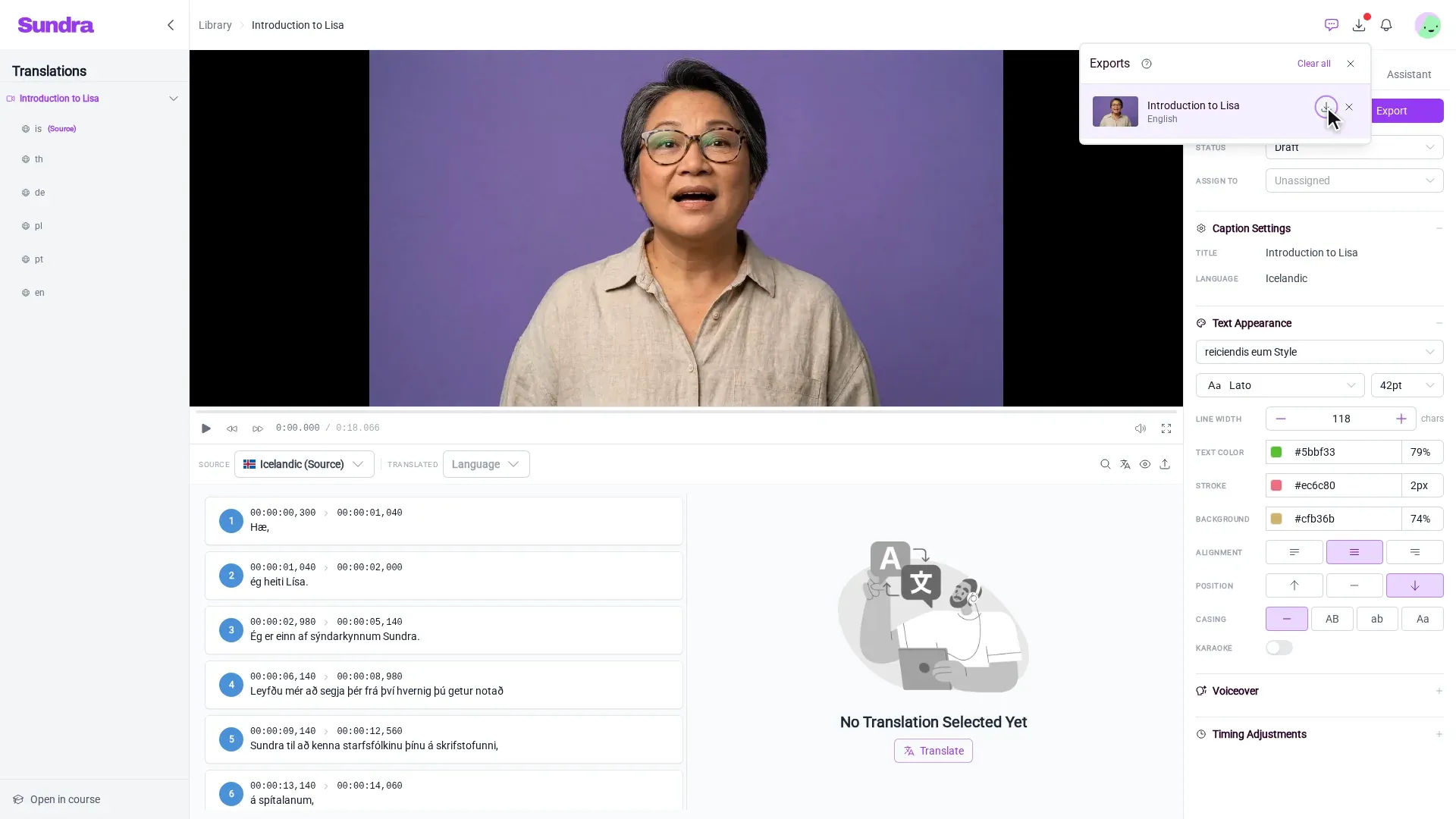
When the render is done, a download button appears next to the video in the Exports widget. Click it, and your MP4, with the subtitles burned in, is saved to your computer.
Tips
- Style before you export. Subtitles are burned in exactly as they look in the editor preview, so set the font, size and colours under Text Appearance in the Captions panel first.
- Caption fixes need a new export. Burned-in subtitles are part of the picture, so if you edit the captions afterwards, export the video again.
- Want captions you can turn off? Use the Captions tab in the same dialog to download a subtitle file instead, and upload it alongside the original video.
That’s it!
You now have a video with subtitles that play everywhere, in every language you need. If anything doesn’t look right, reach out to us at hello@sundra.io.