Your brand kit holds the logo, colors, and fonts Sundra uses for new courses, brand cards, and captions. Instead of typing in color codes and hunting for font names, you can give the Sundra assistant your website address and let it propose a brand kit for you to review.
Before you begin
- Brand kit needs to be enabled on your workspace. If you don’t see it in the sidebar, get in touch with us.
- You need a publicly reachable website address. The assistant can’t read pages behind a login, on an intranet, or protected by a password.
Step 1: Open Brand kit in the sidebar
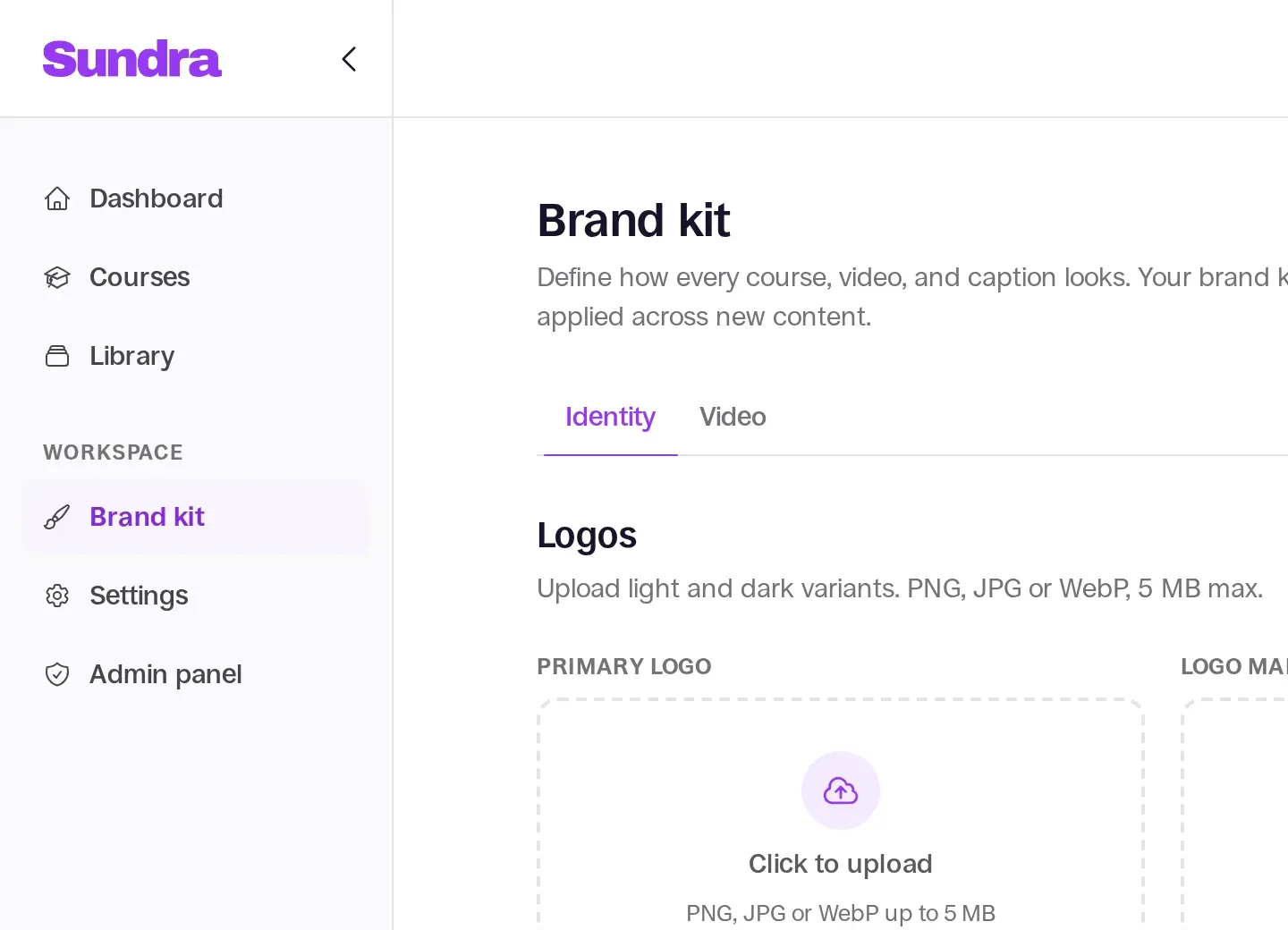
Click Brand kit in the left sidebar to open your workspace’s brand identity.
Step 2: Enter your website address
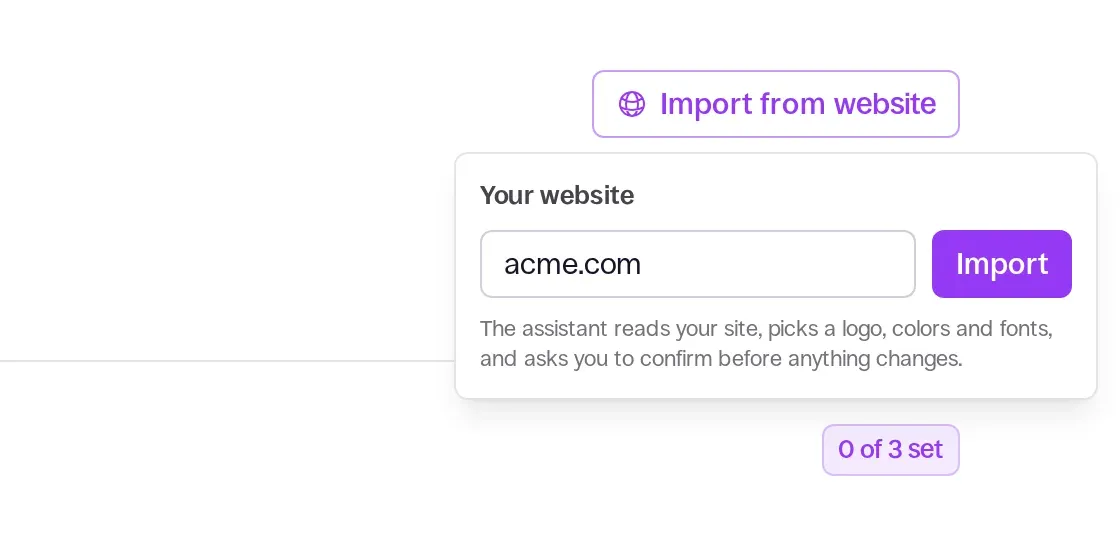
Click Import from website in the top-right corner of the Brand kit page, enter your website address in the Your website field (for example acme.com), and click Import. Your homepage usually works best, since that’s where your logo and main colors appear.
Step 3: Review and confirm the assistant’s proposal
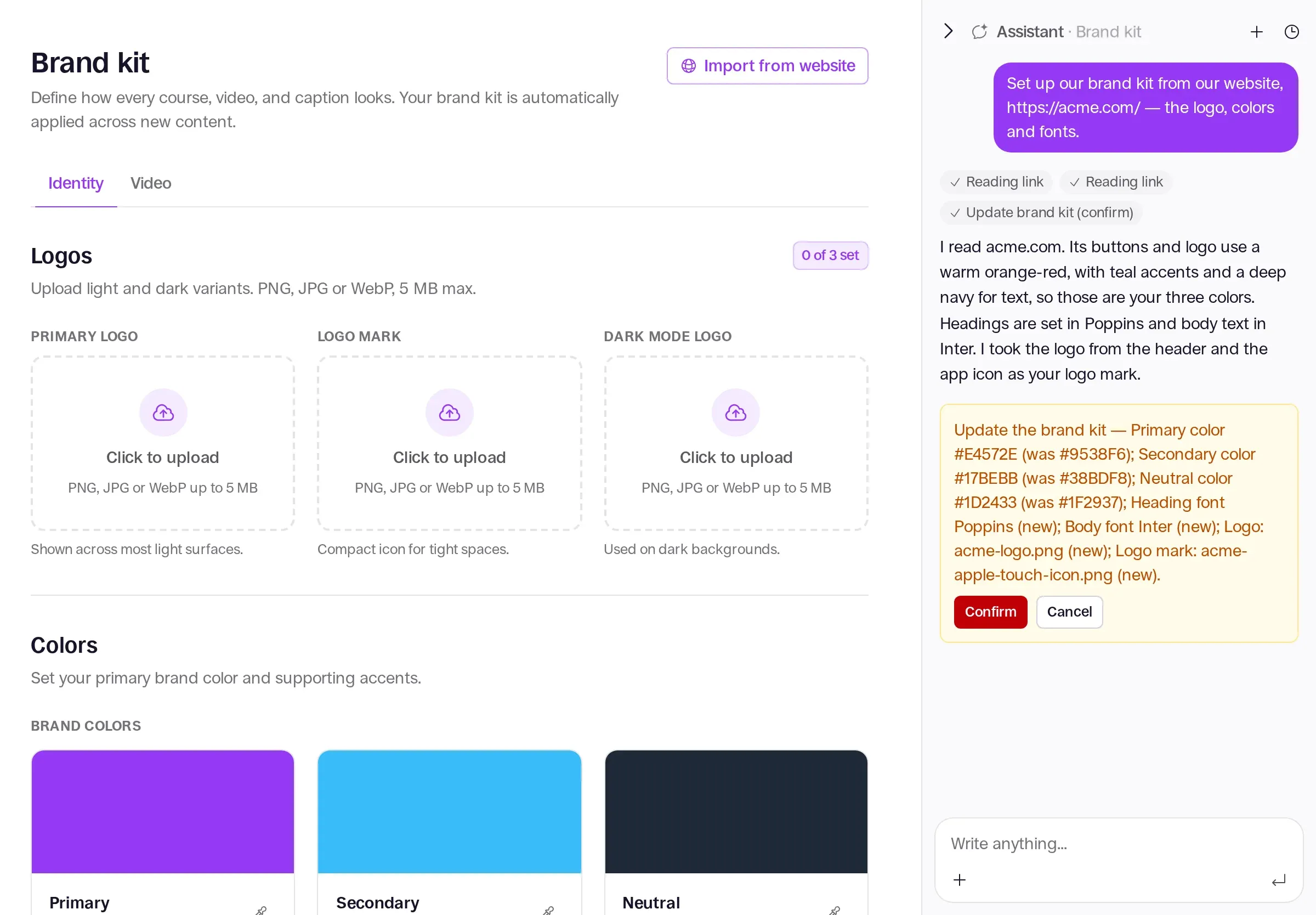
The assistant opens in the panel on the right, visits your site, and proposes a primary logo, brand colors, and a heading and body font. Nothing is saved yet. Check each item, then click Confirm to apply the proposal, or tell the assistant what to change, for example “use the dark version of the logo instead”.
Step 4: Fine-tune your brand identity
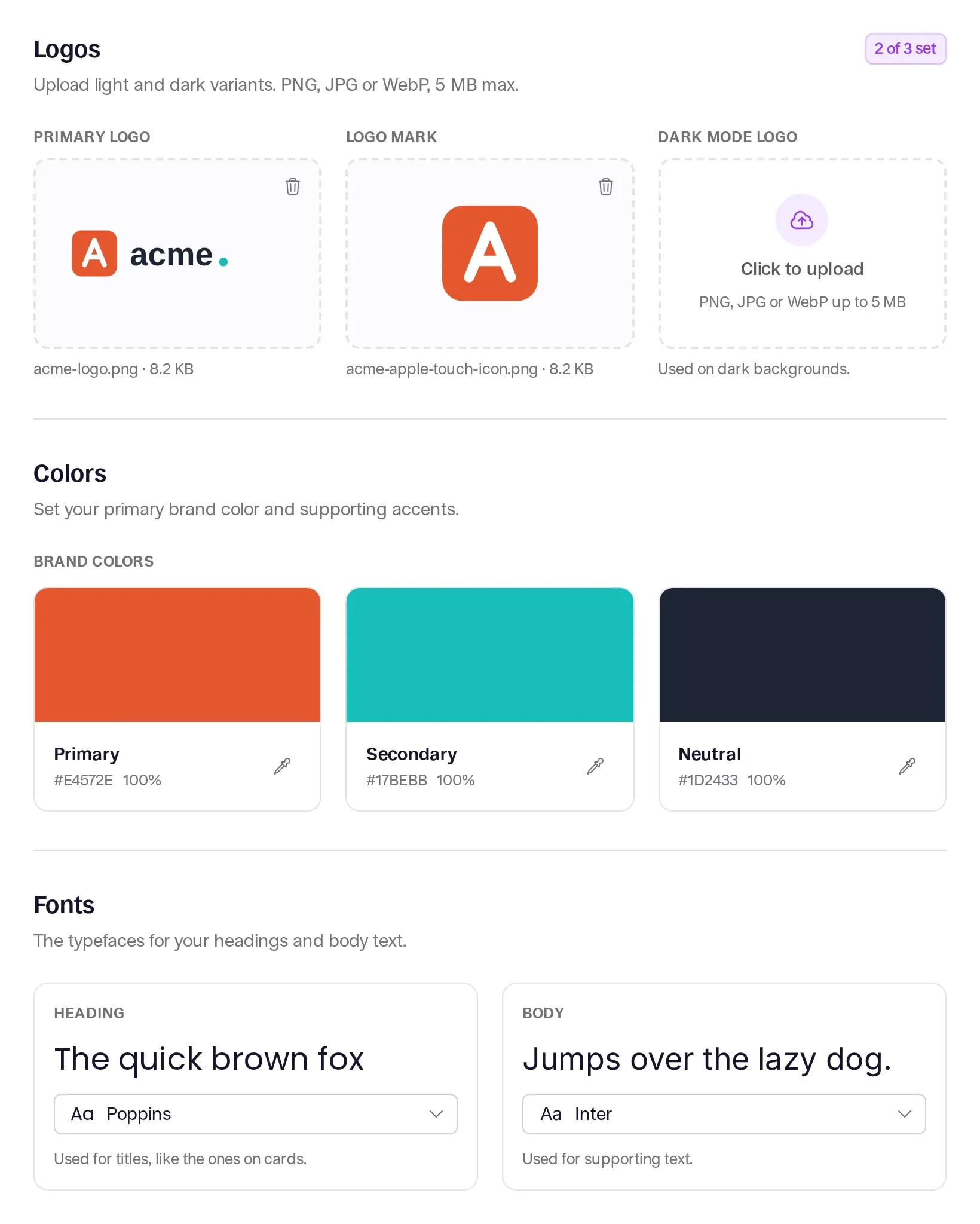
Once applied, the logo, colors, and fonts appear in your brand kit. You can replace the logo, adjust any color, or pick a different font from the catalogue whenever you like. Changes apply to new courses, brand cards, and captions.
Good to know
- If the assistant can’t find your logo, for example because it’s part of a larger image, upload it yourself on the Brand kit page.
- Fonts are matched to the closest family in Sundra’s font catalogue. If your site uses a licensed font, the assistant suggests a close alternative.
- Videos you’ve already exported keep the look they were exported with. Export them again to pick up your new branding.
- Your brand kit also shapes the cards in avatar videos. See Creating avatar videos with the assistant.
- To control how captions look on screen, see Styling captions and setting line width.
That’s it!
New courses, cards, and captions now follow your brand. Questions? Email us at hello@sundra.io.