Sundra works best when the people who review captions, write course material, and approve translations share one workspace. This guide shows you how to invite teammates from your Team page, pick the right role for each person, and keep track of invitations that haven’t been accepted yet.
Before you begin
- You need the Owner or Admin role in the workspace. Members and Students can’t send invitations.
- Your plan needs available seats. Each teammate uses one seat, so check how many you have left before inviting a larger group.
Step 1: Open the Team page
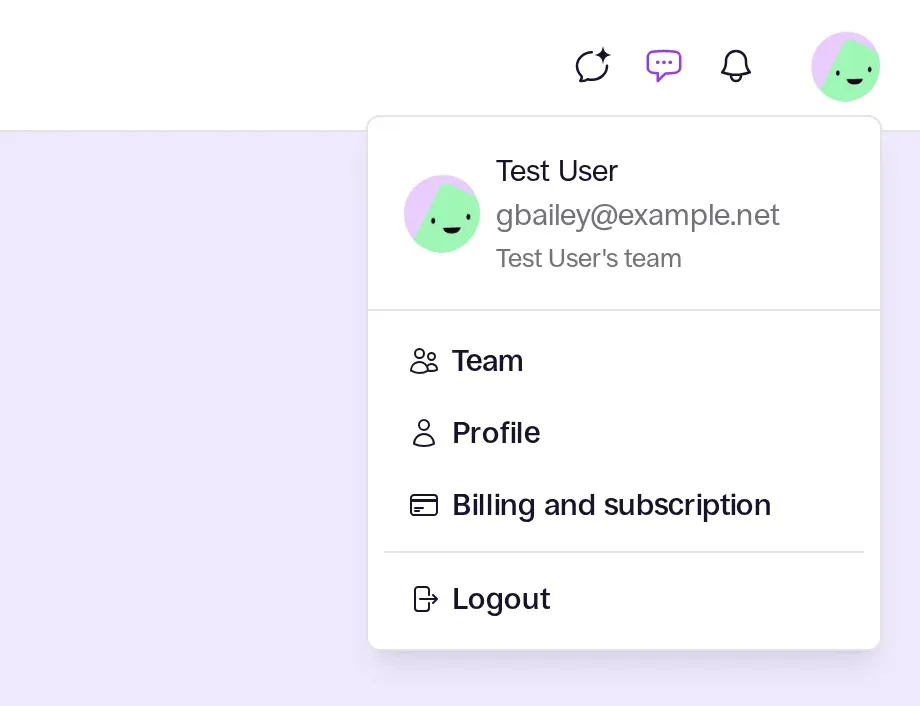
Click your name or profile picture to open the profile menu, then choose Team.
Step 2: Start a new invitation
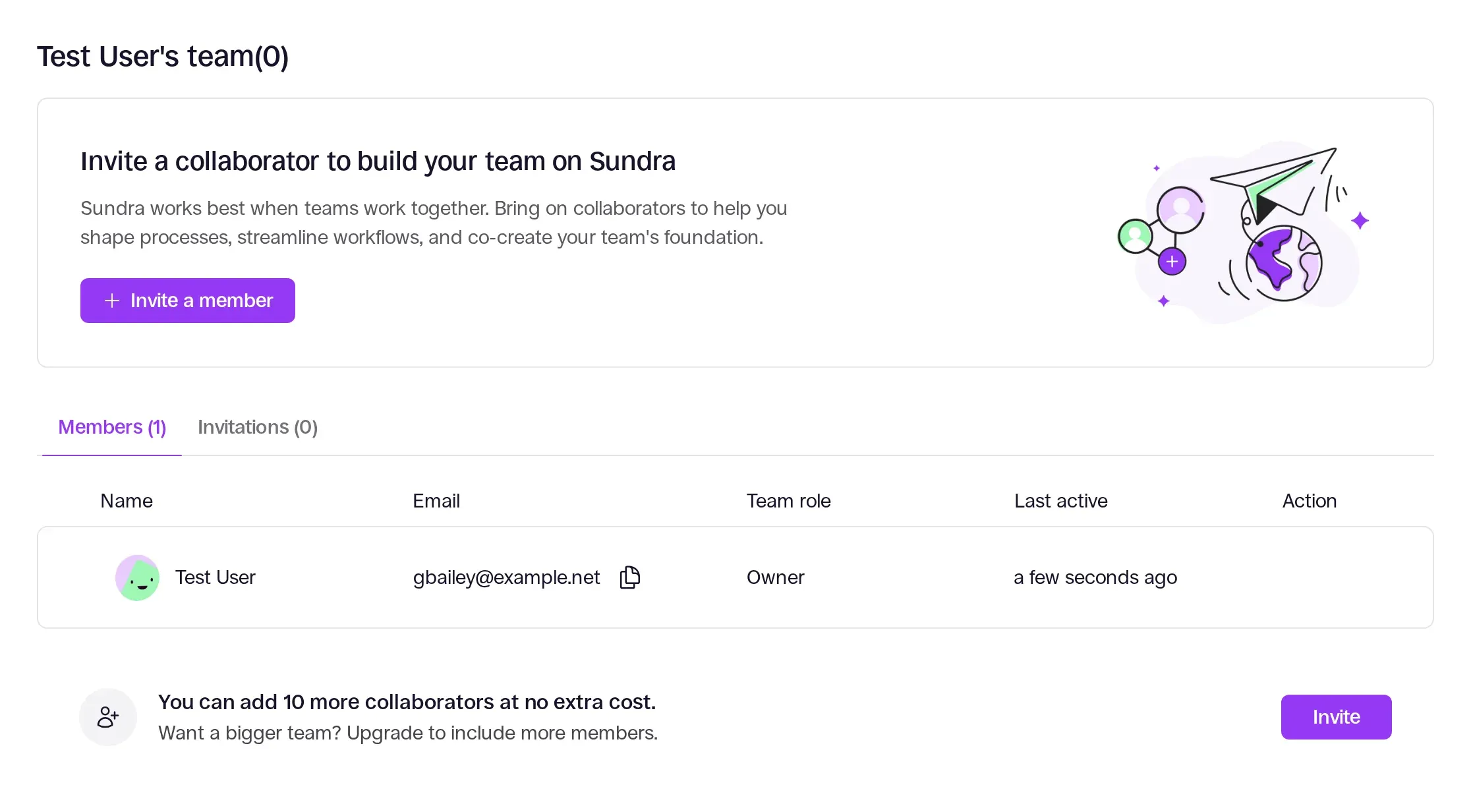
The Team page lists everyone already in your workspace, along with their role, plus an Invitations tab for pending invites. Click + Invite a member (or the Invite button below the member list) to open the invitation dialog.
Step 3: Review your available seats
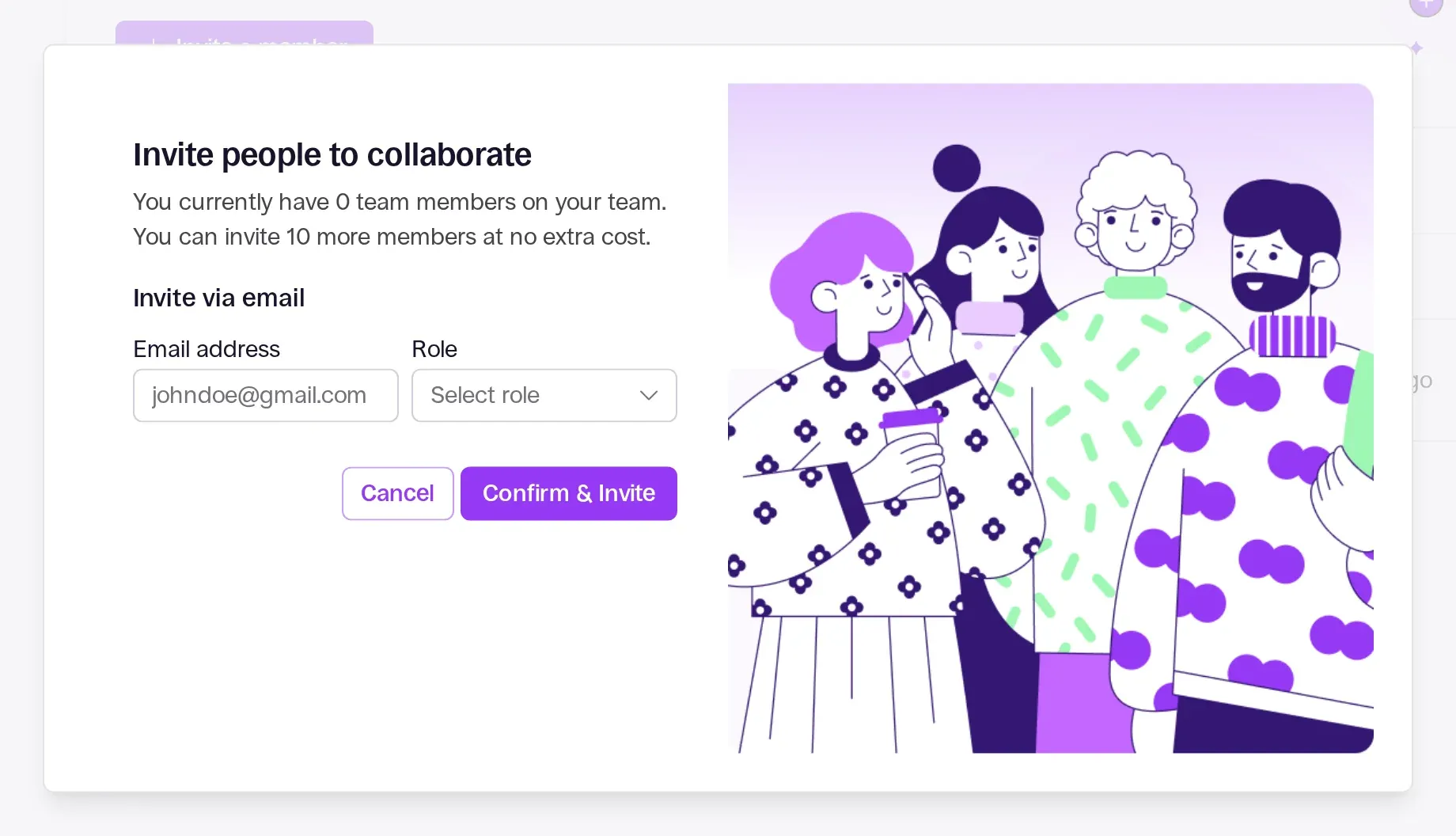
Before you add anyone, the dialog shows how many seats are left on your plan. If no seats are available, upgrade your plan or remove someone who no longer needs access before you invite more people.
Step 4: Enter email addresses and assign roles
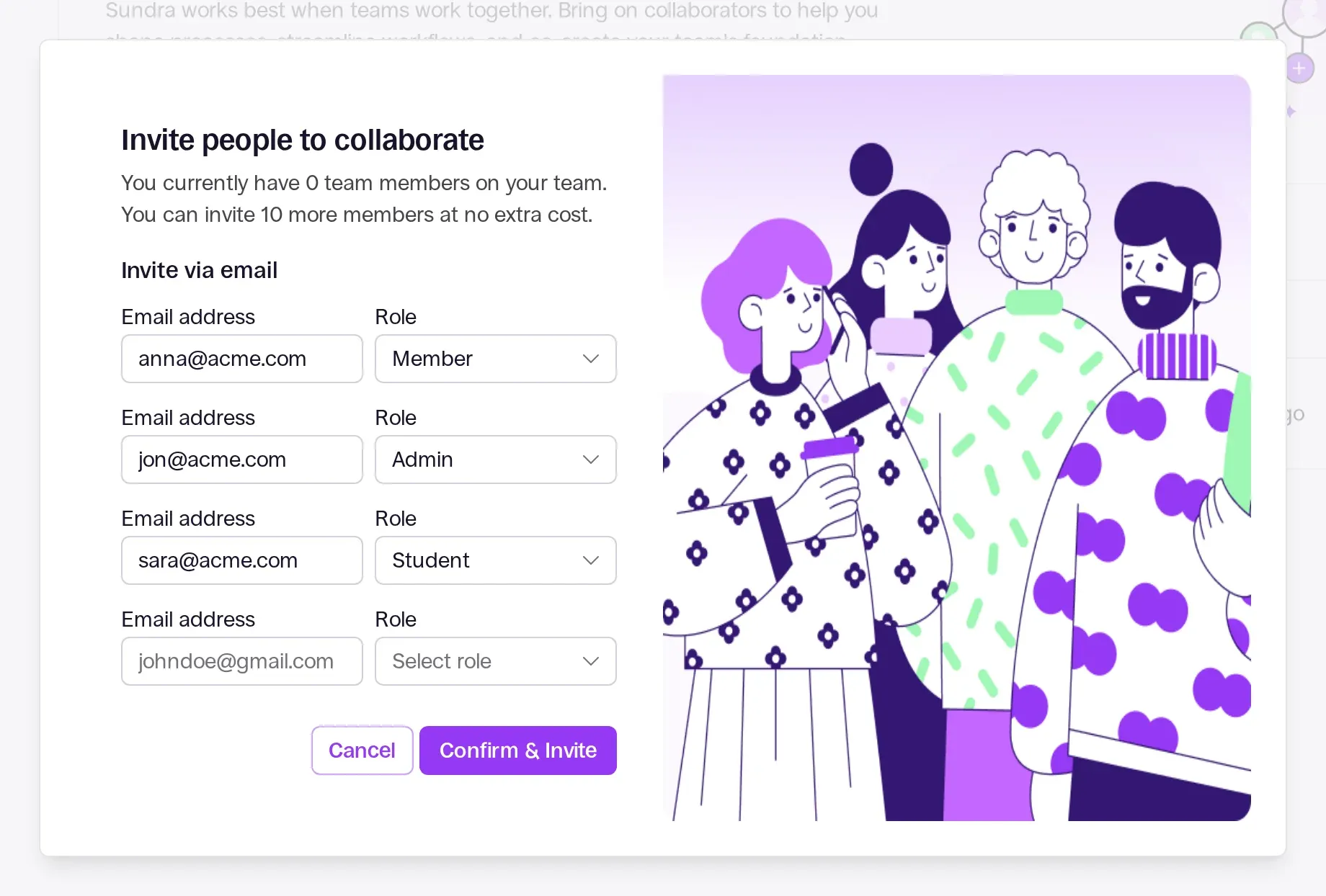
Type the email address of the person you want to invite, for example anna@acme.com, and pick a role from the dropdown: Member, Admin, or Student. A new row appears automatically as you fill in each address, so you can invite several people at once. When everything looks right, click Confirm & Invite.
Team roles explained
- Owner: Holds the workspace and its subscription. The Owner manages billing, can invite and remove anyone, and can change every role. Each workspace has one Owner.
- Admin: Can invite teammates, change roles, and manage workspace settings such as the brand kit, on top of full access to all content.
- Member: Can upload media, edit captions and translations, and build courses, but can’t invite people or change workspace settings.
- Student: Can view the courses and training shared with them, but can’t edit content.
Good to know
- Invitations are sent by email. Anyone without a Sundra account creates one from the link in the email and lands straight in your workspace.
- Pending invitations stay on the Team page until they’re accepted, so you can see at a glance who hasn’t joined yet.
- You can change a teammate’s role later from the Team page.
- Removing a teammate frees up their seat for someone else.
- One person can belong to several workspaces and switch between them.
That’s it!
Your teammates can now review, write, and publish alongside you in Sundra. Questions? Email us at hello@sundra.io.