Every captioned video in Sundra starts with an upload. You add the file from your Dashboard (or the Library), Sundra auto-detects the language spoken in it (you can also pick it yourself), and transcribes it into captions you can edit, translate and export.
This guide walks through an upload from start to finish, and covers what to do if an upload doesn’t go through.
Supported formats
Sundra takes the common video formats:
- MP4 and MOV, the formats most cameras, phones and editing tools export
- M4V, MKV and WebM
Each file can be up to 5 GB, and you can add up to 20 files in one go. If you’re exporting from an editor, an MP4 (H.264) file is the safest choice.
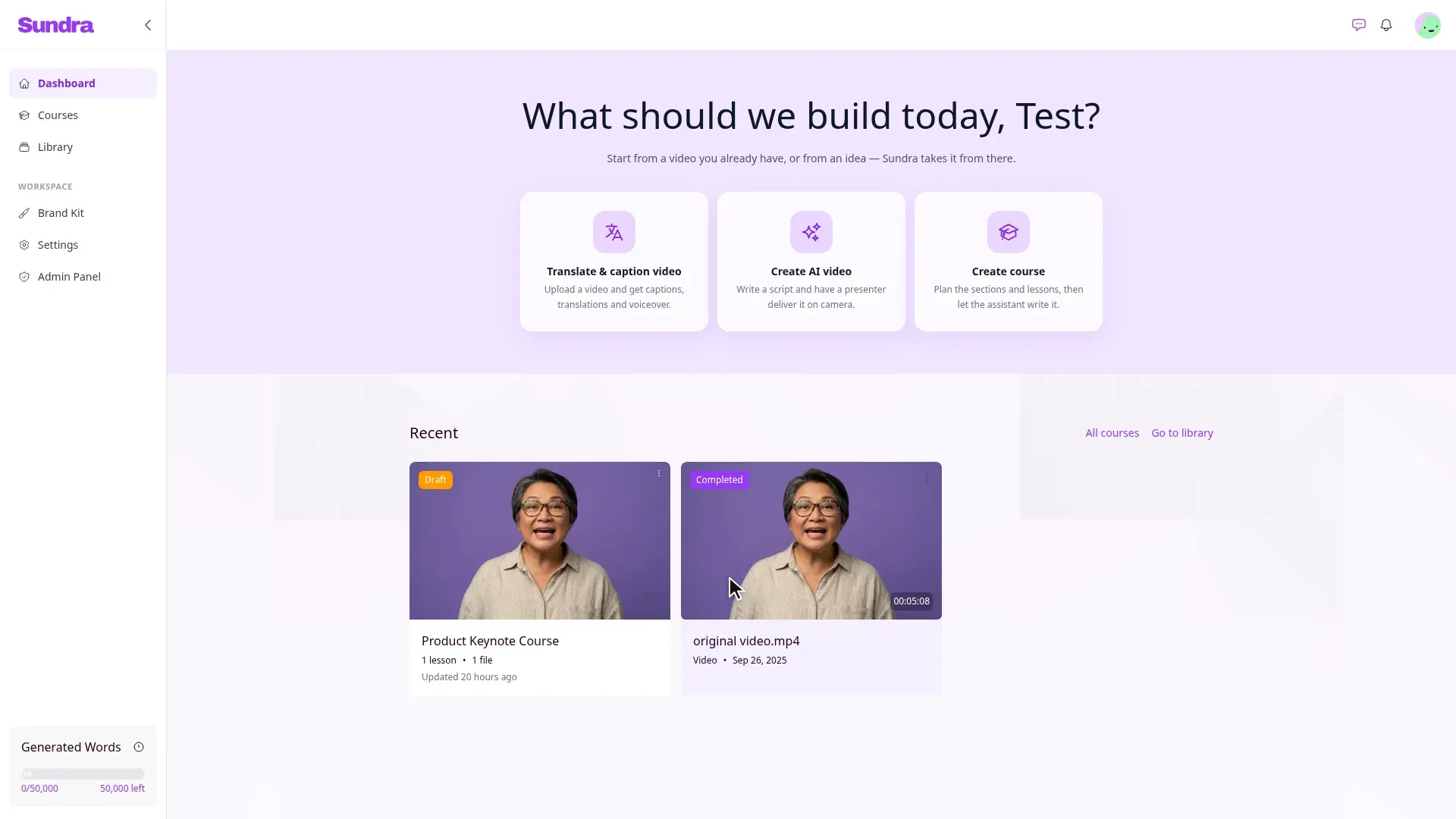
Step 1: Open the upload area on your Dashboard
On your Dashboard, click Translate & caption video. The upload area opens right below it.
You can also upload from the Library, which has the same upload area at the top.
Step 2: Add your video
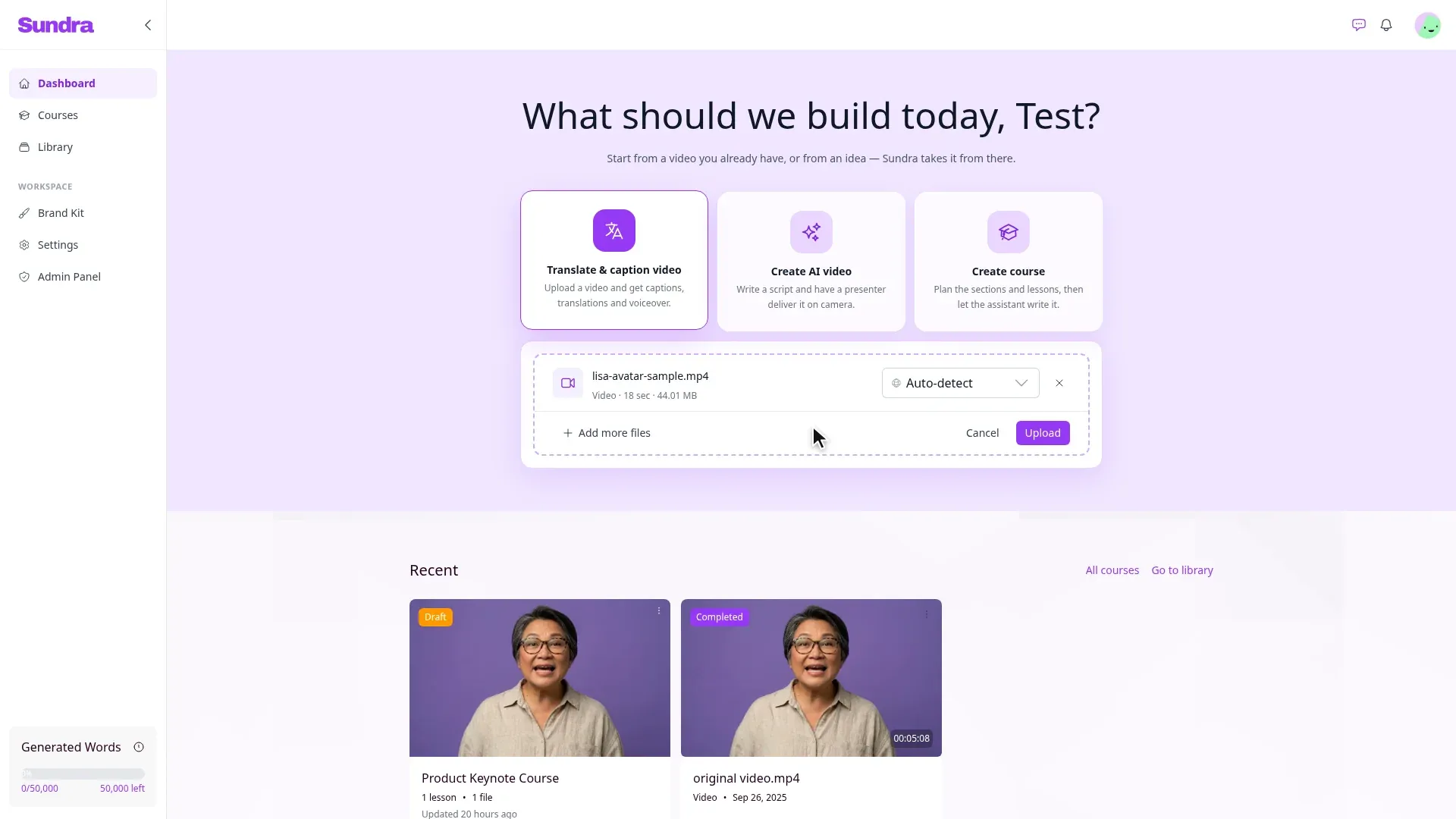
Drag your video onto the page, or click “Drop a video anywhere on this page or click here to upload” to pick it from your computer.
Have the video on Vimeo instead? Click Import from Vimeo (see Connecting Vimeo to Sundra).
The video appears in the upload area with its name, type, length and size. This is your chance to check you picked the right file. Remove it with the ×, or click Add more files to upload several together.
Step 3: Check the spoken language (optional)
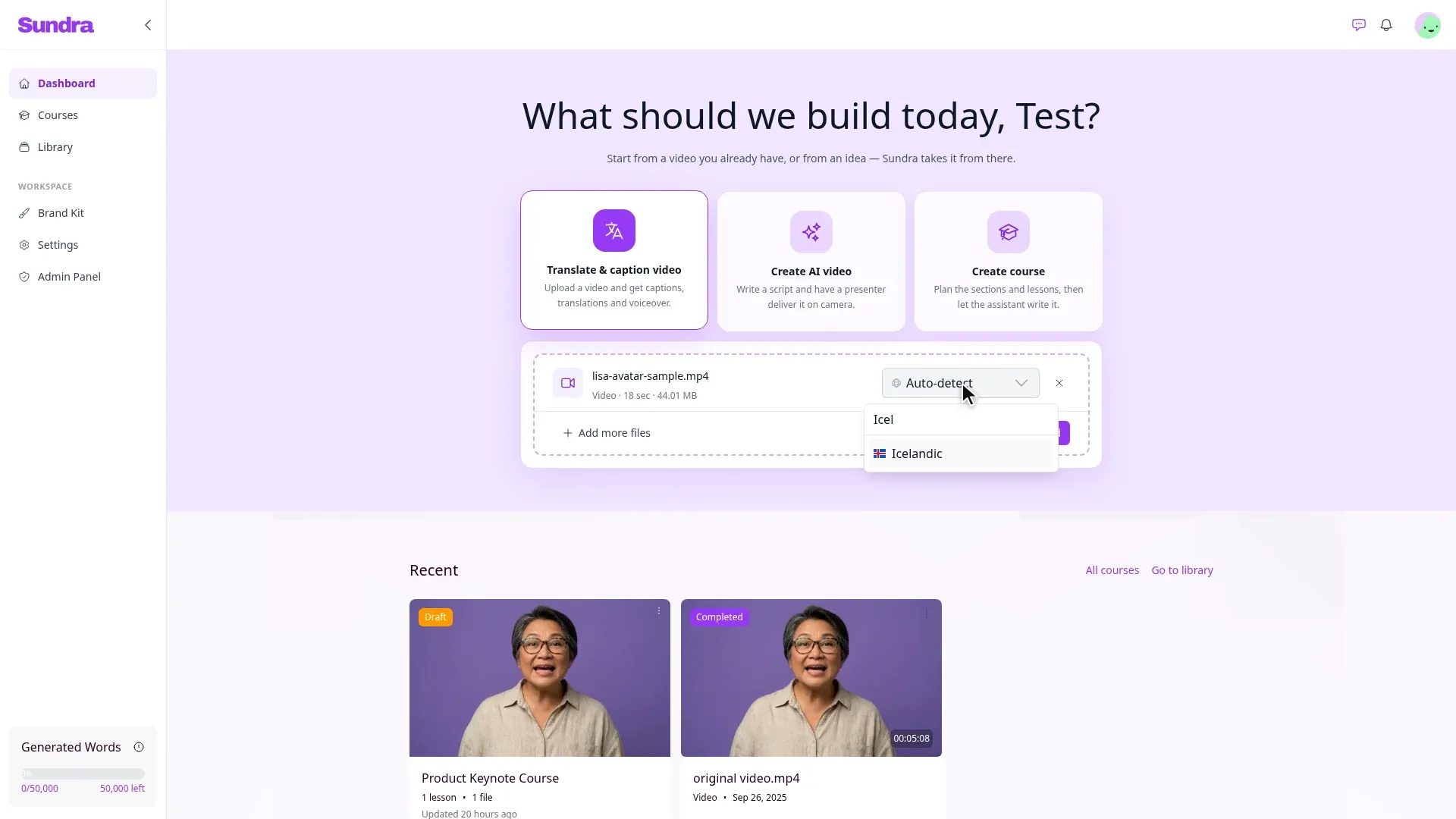
By default the language is set to Auto-detect: Sundra listens to the audio and sets the spoken language for you once the transcription is done. You don’t need to do anything here.
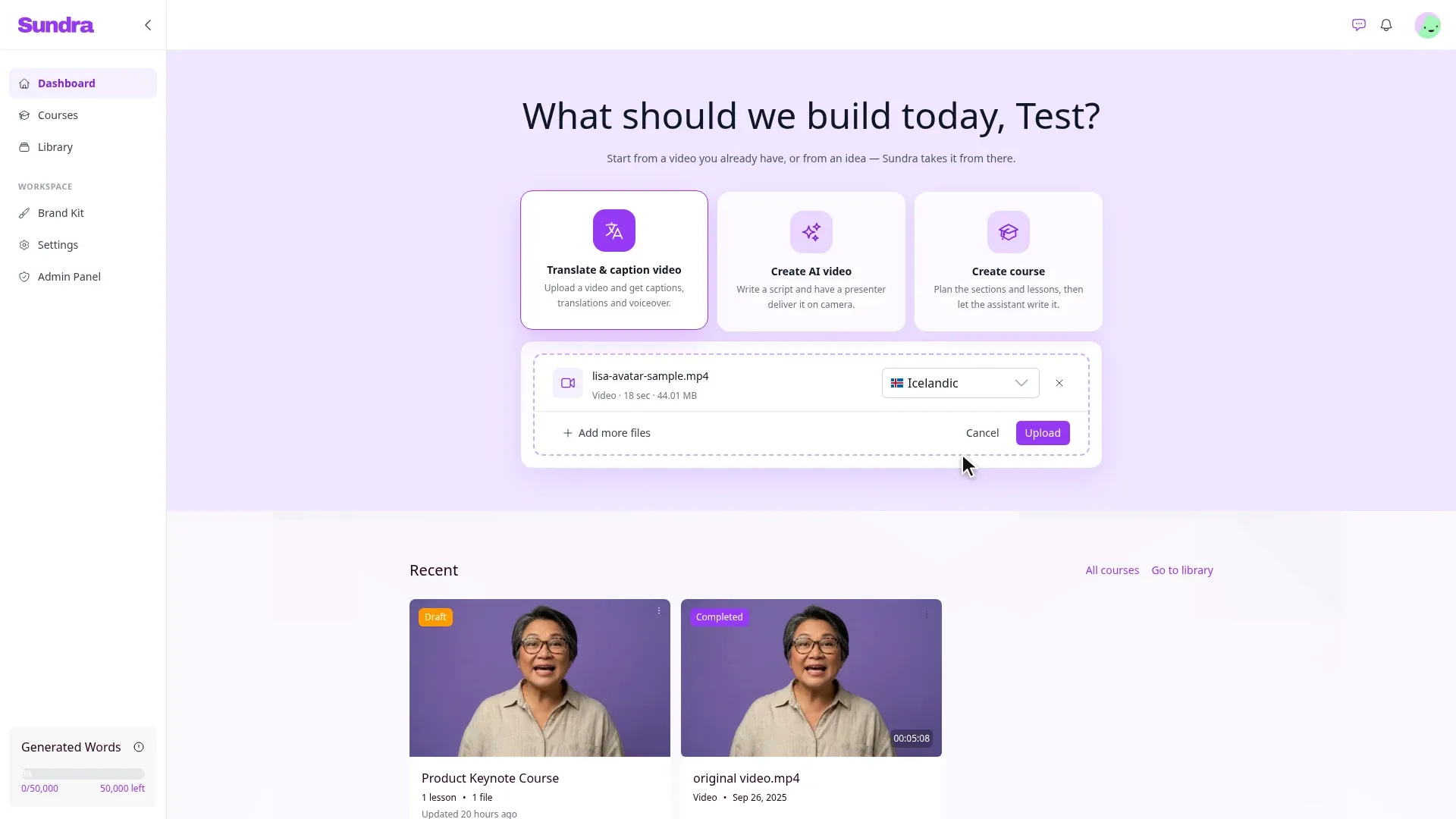
If you’d rather set it yourself, open the language menu next to the file and pick the language spoken in the video. Type in the search box to find it quickly.
Tip: Picking the language yourself is the most reliable option when you know it, especially for short clips with little speech.
Step 4: Click Upload
Click Upload, whether you kept Auto-detect or picked a language.
The video gets its own card under Recent straight away, with a progress bar showing how much has been sent.
Keep the tab open until the upload reaches 100%. You can keep working elsewhere in Sundra, but closing or reloading the tab stops the upload.
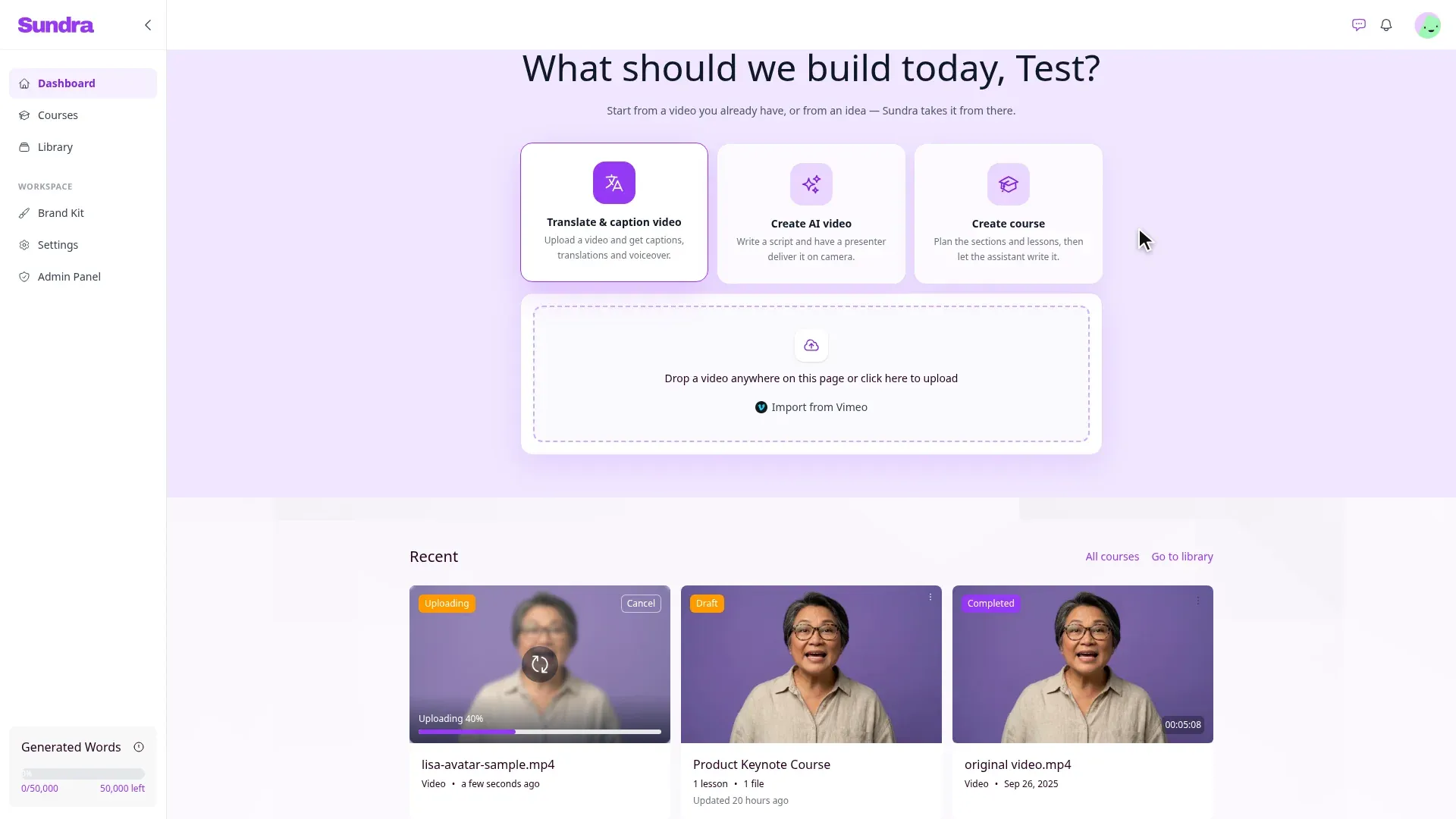
Step 5: Let Sundra transcribe it
Once the upload finishes, Sundra prepares the video and starts transcribing it right away, and the card moves from Waiting to Transcribing. This part happens on our side, so you can close the tab now; you’ll find the video waiting when you come back.
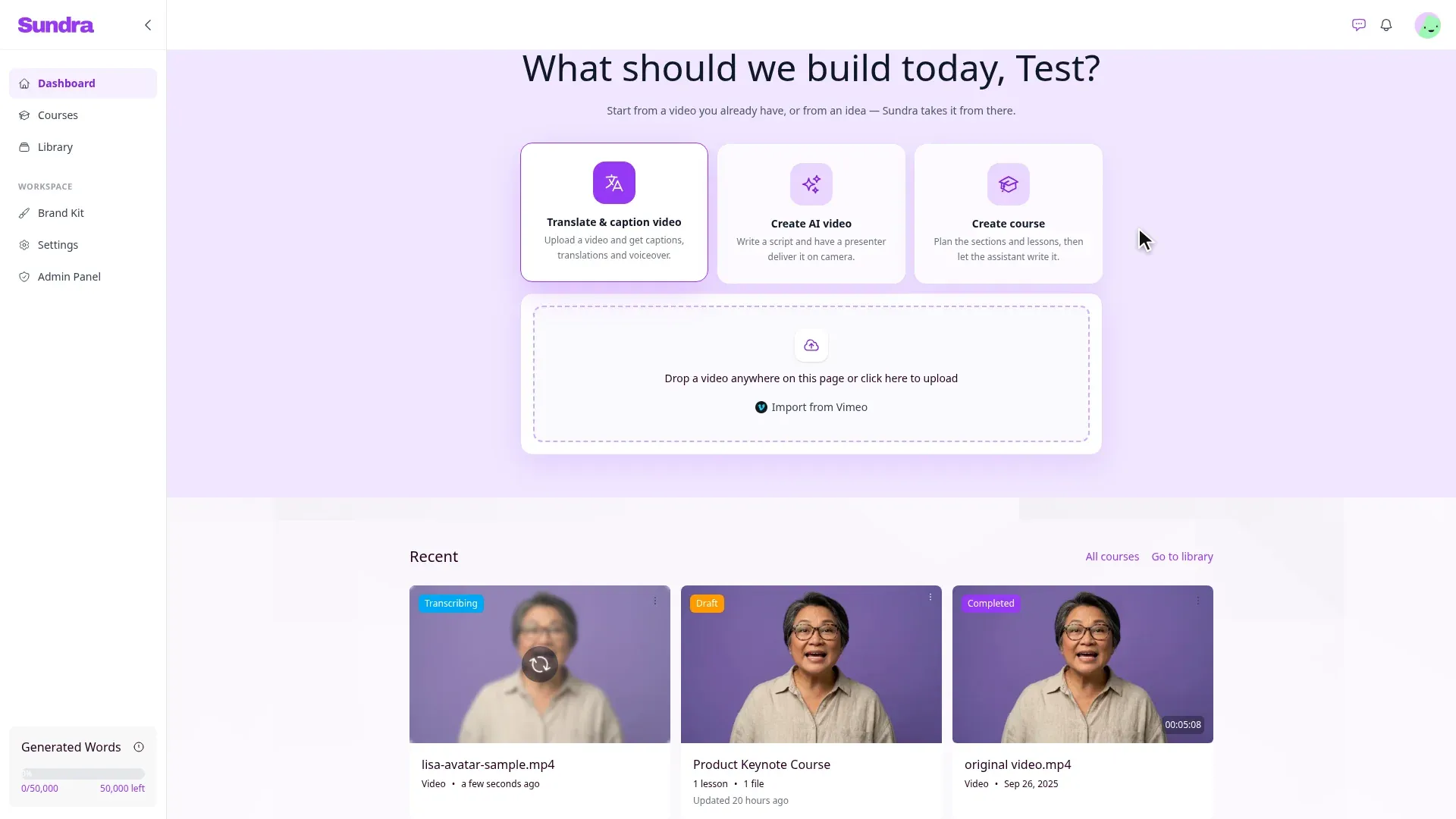
Step 6: Open your captioned video
When the card says Completed, your captions are ready. Click the card (on the Dashboard or in the Library) to open the video in the caption editor, where you can fix any word, adjust timing, translate and export.
Troubleshooting: “Upload failed”
If something goes wrong, the video’s card turns red and tells you why. Here are the common reasons and what to do about each.
“The upload was interrupted.”
The connection dropped or the tab was closed before the upload finished. Delete the failed card, check your internet connection, and upload the file again, and keep the tab open until the progress bar reaches 100%. On a slow or unstable connection, try a wired network or upload outside busy hours.
“This video file looks incomplete”
The file itself is cut off: a recording or screen capture stopped too early, an export never finished, or the file was copied before it was fully saved. Open the file on your computer and check it plays all the way to the end. If it doesn’t, export or copy it again from the original and upload the new file.
“The file could not be processed.”
The file uploaded, but Sundra couldn’t read the video inside it. This usually means an unusual codec or a damaged file. Re-export the video as MP4 (H.264 video, AAC audio) from your editing tool or a free converter such as HandBrake, then upload it again.
The file was skipped before it uploaded
If the file never gets a card and you see a message like “… was skipped”, Sundra didn’t accept it:
- “we take video, audio, …”: the format isn’t supported. Convert it to MP4 or MOV.
- “it is over 5 GB”: the file is too large. Trim it, split it into parts, or export at a lower bitrate.
The card is stuck on Uploading
If you closed the tab mid-upload, the card can’t finish. Delete it and upload the file again.
Still stuck? Use the chat button in the app or email hello@sundra.io with the file name and the message you see, and we’ll take a look.
Good to know
- Auto-detect works best on clear speech. If the detected language is wrong, re-upload the video and pick the language yourself.
- Make names come out right. Add company names, product terms and jargon as Transcription Keyterms before you upload.
- Uploading several videos? Add them all at once, and set the language for each file before clicking Upload.
That’s it!
Your video is in the Library and captioned. Next, you might want to style your captions or export the video with burnt-in subtitles. Questions? Reach out to us at hello@sundra.io.